Handling Server Error (500) in a Sitecore JSS + Next.js Multisite Setup

“Oh no… it’s a 500!”

That all-too-familiar server error shows up and suddenly your site feels broken. The user sees a generic, ugly message — not the best experience, right?

But what if we could handle server errors gracefully, even in a multisite Sitecore JSS + Next.js environment?

This guide walks you through how to build a proper 500 error page setup that works across multiple sites and hosts — using Sitecore JSS, Next.js, and a touch of smart engineering.

🤔 Why Custom 500 Handling Matters

In large-scale multisite projects, an unhandled 500 means:

  • A broken user experience
  • Lost trust and engagement
  • Confusion about whether the site is down completely

Handling server errors gracefully isn’t just good UX — it’s also good for observability, debugging, and future-proofing your app.

Step 1: Create a 500 Page in Sitecore

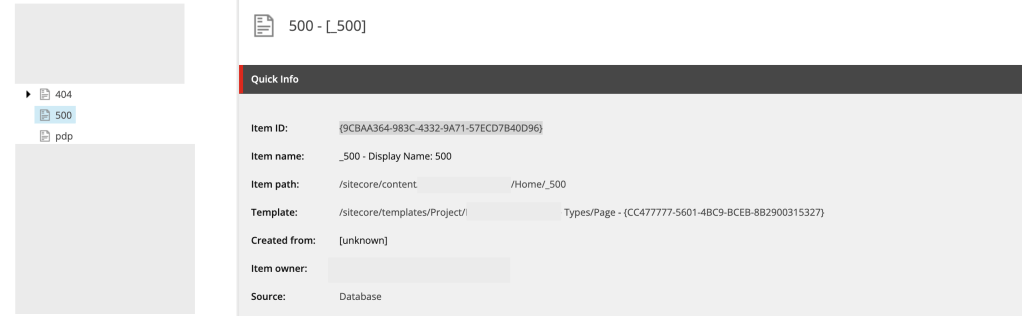
Let’s start by creating a dedicated 500 error page within Sitecore Content Editor.

❗ Note: Sitecore JSS does not allow numeric-only routes like /500. Use a name like _500 instead.

  • Create a page under your site’s content tree (e.g., /site/pages/_500)
  • Set the Display Name to “500” (you can set as per the requirement or more content author friendly)
Step 2: Assign the 500 Page in Site Settings

Now that your 500 page exists, link it to the site’s error handling settings:

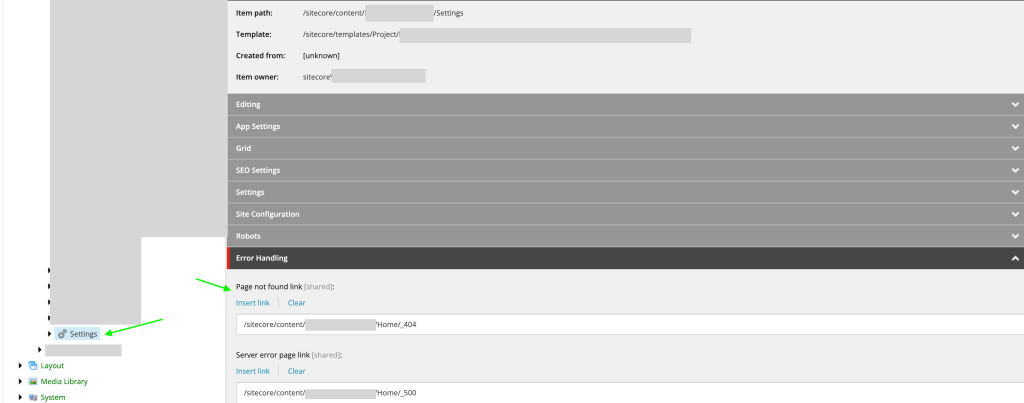
  1. Go to your Site Settings item in the content tree
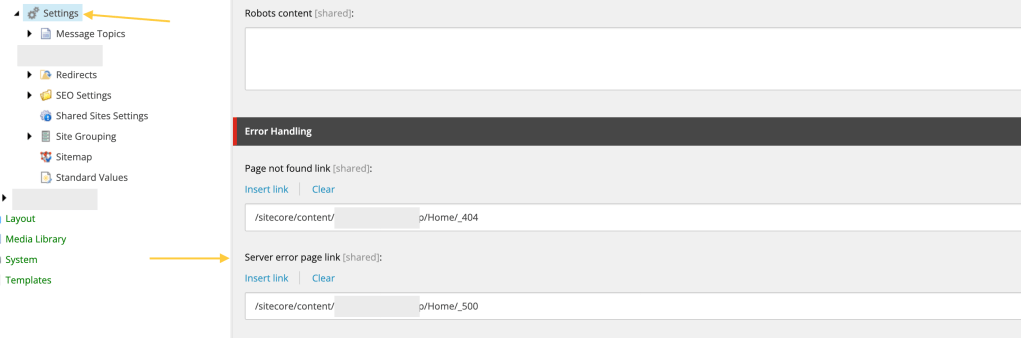
  2. Scroll to the Error Handling section
  3. In the Server Error Page field, select the _500 page you created

This is the basic setup for error handling from Sitecore side now it’s time to jump on Next Js for further configuration.

Step 3: Handle Multisite Layout Data via API Route

In a multisite environment, we can’t rely on getStaticProps or hardcoded paths. We need to dynamically resolve the layout data for each site’s 500 page based on the domain.

To solve this, create a custom API route to serve 500 page data per site:

pages/api/error/content.ts

content.ts

import {
  ComponentPropsService,
  GraphQLErrorPagesService,
  LayoutServiceData,
} from '@sitecore-jss/sitecore-jss-nextjs';
import { siteResolver } from 'lib/site-resolver';
import { NextApiRequest, NextApiResponse } from 'next';
import config from 'temp/config';

import clientFactory from 'lib/graphql-client-factory';
import { moduleFactory } from 'temp/componentBuilder';
import { sitecorePagePropsFactory } from 'lib/page-props-factory';

/**
 * Gets the ErrorPages content.  We have to fetch via API to be able to get site-specific content.
 */
export default async function handler(req: NextApiRequest, res: NextApiResponse) {
  const domain = req.headers.host;
  let siteName;
  const context = {
    defaultLocale: 'en',
    locale: 'en',
    locales: ['en'],
  };
  // If no store id in cookie, let it grab default in page props factory

  // const rewritePath = getStoreIdRewritePath(, { storeId });
  try {
    const site = siteResolver.getByHost(domain ?? '');
    siteName = site.name;
  } catch {
    siteName = config.sitecoreSiteName;
  }

 
  const serverErrorData = await sitecorePagePropsFactory.create({
    params: {
      path: [`_site_${siteName}`, '_500'],
    },
    locale: context?.locale,
  });

  try {
    const resultErrorPages = await errorPagesService.fetchErrorPages();

    const layoutService = await new ComponentPropsService().fetchStaticComponentProps({
      context: context,
      layoutData: resultErrorPages?.notFoundPage?.rendered as LayoutServiceData,
      moduleFactory: moduleFactory,
    });

    res.setHeader('CDN-Cache-Control', `s-maxage=60, stale-while-revalidate=${60 * 60}`);

    // Cache settings for the browser.
    res.setHeader('Cache-Control', `max-age=60, stale-while-revalidate=${60 * 60}`);

    res.status(200).json({
      ...props,
      componentProps: layoutService,
      serverErrorData: serverErrorData,
    });
  } catch (error) {
    console.error('Error occurred while fetching error pages');
    console.error(error);
    res.status(500).json({ message: 'An error occured' });
  }
}

What’s Happening?

  • Domain-based site detection via a siteResolver
  • Dynamically resolves the 500 error page path per site
  • Fetches layout data and component props needed for rendering
  • Adds smart caching headers for better performance

Now call this API from 500 page.

Step 4: Create 500.tsx in Next.js App

Next, create a custom 500 error page that uses the API route we just built.

pages/500.tsx

import Head from 'next/head';
import Layout from 'src/Layout';
import { componentBuilder } from 'temp/componentBuilder';
import { useEffect, useState } from 'react';
import { SiteName } from 'src/helpers/Constants';
import { sitecorePagePropsFactory } from 'lib/page-props-factory';
import { SitecorePageProps } from 'lib/page-props';
import {
  ComponentPropsContext,
  ErrorPages,
  LayoutServiceData,
  SitecoreContext,
} from '@sitecore-jss/sitecore-jss-nextjs';
import { ComponentProps } from '@sitecore-feaas/clientside/types/headless';

const ServerError = (): JSX.Element => (
  <>
    <Head>
      <title>500: Server Error</title>
    </Head>
    <div style={{ padding: 10 }}>
      <h1>500 Internal Server Error</h1>
      <p>There is a problem with the resource you are looking for, and it cannot be displayed.</p>
      <a aria-label="Go to the Home page" href="/">
        Go to the Home page
      </a>
    </div>
  </>
);

const Custom500: React.FC<SitecorePageProps> = () => {
  const [layoutData, setLayoutData] = useState<LayoutServiceData>();
  const [componentProps, setComponentProps] = useState<ComponentProps>();
  const [fetchError, setFetchError] = useState(false);
  const [componentContextData, setcomponentContextData] = useState<ComponentContextData>({});
 

  useEffect(() => {
    // Only execute if we didn't get data from the default.
    // Depending on requirements, we may want to always fetch.
    if (!layoutData) {
      fetch('/api/error/content')
        .then(async (res) => {
          // eslint-disable-next-line @typescript-eslint/no-explicit-any
          const data = (await res.json()) as ErrorPages | null;
          // eslint-disable-next-line @typescript-eslint/no-explicit-any
          if ((data as any)?.layoutData) {
            // eslint-disable-next-line @typescript-eslint/no-explicit-any
            setComponentProps((data as any)?.componentProps);
            // eslint-disable-next-line @typescript-eslint/no-explicit-any
            setLayoutData((data as any)?.serverErrorData?.layoutData);
            window.history.replaceState(null, '', '/500');
          } else {
            // There was no custom error page, render the fallback.
            setFetchError(true);
          }
        })
        .catch(() => {
          // There was an error, render the fallback.
          setFetchError(true);
        });
    }
  }, []);

  if (fetchError) {
    return <ServerError />;
  }

  if (!layoutData || !componentProps) {
    return <></>;
  }

  return (
    <ComponentPropsContext value={componentProps}>
      <SitecoreContext
        componentFactory={componentBuilder.getComponentFactory()}
        layoutData={layoutData}
      >
        <Layout layoutData={layoutData} headLinks={[]} />
      </SitecoreContext>
    </ComponentPropsContext>
  );
};

What’s Going On Here?

  • The component fetches the 500 page layout dynamically from our API route
  • It renders your Sitecore-managed 500 content — with all the branding, components, and context you expect
  • If the API fails or data is missing, it gracefully falls back to a hardcoded static message

Tips

  • Cache Strategically: Set CDN and browser cache headers for the error API route to reduce load under high-traffic conditions.
  • Localization Support: Add locale detection and translation support in both API and client-side rendering.
  • Telemetry: Log 500 page hits to Application Insights, Sentry, or another observability tool for better incident tracking.
  • Fallback Component: Keep a styled and branded fallback error component for when even your error page fails.

If you found this helpful, let me know or feel free to share your own approach! Happy coding 👨‍💻👩‍💻

Implementing Custom 404 Pages in Sitecore JSS Next.js Multisite

Overview

This guide explains how to implement and customize 404 error pages in a Sitecore JSS Next.js multisite environment. We’ll cover both the Sitecore configuration and the Next.js implementation.

Sitecore Configuration

1. Create the 404 Page

First, create a custom 404 page in Sitecore Content Editor:

  1. Navigate to the page section in Content Editor
  2. Create a new page named _404 (Note: Avoid using “404” as the page name per Sitecore JSS guidelines)
  3. Set the display name to “404”
  4. Add desired components to the page

2. Configure Error Handling

Configure your site to use the new 404 page:

  1. Navigate to your site’s Settings node
  2. Scroll to the Error Handling section
  3. Set the “Page not found” link to your newly created 404 page
  4. Publish all changes

Next.js Implementation

Basic 404 Page Setup

Create a 404.tsx file in your Next.js app’s pages directory:

import {
  ComponentPropsCollection,
  ComponentPropsContext,
  SitecoreContext,
} from '@sitecore-jss/sitecore-jss-nextjs';
import { componentBuilder } from 'temp/componentBuilder';
import Layout from 'src/Layout';
import { GetStaticProps } from 'next';
import { sitecorePagePropsFactory } from 'lib/page-props-factory';
import { SitecorePageProps } from 'lib/page-props';

type PageProps = SitecorePageProps & {
  data: ComponentPropsCollection;
};

const Custom404: React.FC<PageProps> = ({ layoutData, componentProps }) => {
  // Return static NotFound component if data is missing
  if (!layoutData || !componentProps) {
    return <NotFound />;
  }

  return (
    <ComponentPropsContext value={componentProps}>
      <SitecoreContext
        componentFactory={componentBuilder.getComponentFactory()}
        layoutData={layoutData}
      >
        <Layout layoutData={layoutData} headLinks={[]} />
      </SitecoreContext>
    </ComponentPropsContext>
  );
};

export const getStaticProps: GetStaticProps = async (context) => {
  if (process.env.DISABLE_SSG_FETCH || context?.locale?.toLocaleLowerCase() === 'default') {
    return { props: {} };
  }

  const props = await sitecorePagePropsFactory.create({
    params: {
      path: ['/_404'],
    },
    locale: context?.locale,
  });

  return { props };
};

export default Custom404;

Fallback Static Component

Create a NotFound.tsx component for cases where layout data is unavailable:

import Head from 'next/head';

const NotFound = (): JSX.Element => (
  <>
    <Head>
      <title>404: NotFound</title>
    </Head>
    <div style={{ padding: 10 }}>
      <h1>Page not found</h1>
      <p>This page does not exist.</p>
      <a aria-label="Go to the Home page" href="/">
        Go to the Home page
      </a>
    </div>
  </>
);

export default NotFound;

Multisite Configuration

1. Create API Route for Error Pages

Create pages/api/error/content.ts to handle multisite 404 content:

import {
  ComponentPropsService,
  GraphQLErrorPagesService,
  LayoutServiceData,
} from '@sitecore-jss/sitecore-jss-nextjs';
import { siteResolver } from 'lib/site-resolver';
import { NextApiRequest, NextApiResponse } from 'next';
import config from 'temp/config';
import clientFactory from 'lib/graphql-client-factory';
import { moduleFactory } from 'temp/componentBuilder';

export default async function handler(req: NextApiRequest, res: NextApiResponse) {
  // Get site name based on domain
  const domain = req.headers.host;
  let siteName = config.sitecoreSiteName;
  
  try {
    const site = siteResolver.getByHost(domain ?? '');
    siteName = site.name;
  } catch (error) {
    // Fallback to default site name
  }

  const errorPagesService = new GraphQLErrorPagesService({
    clientFactory,
    siteName,
    language: (req.headers.locale as string) ?? config.defaultLanguage,
    retries: parseInt(process.env.GRAPH_QL_SERVICE_RETRIES ?? '0', 10),
  });

  try {
    // Fetch error pages content
    const resultErrorPages = await errorPagesService.fetchErrorPages();

    // Fetch component props
    const context = {
      defaultLocale: 'en',
      locale: 'en',
      locales: ['en'],
    };

    const layoutService = await new ComponentPropsService().fetchStaticComponentProps({
      context,
      layoutData: resultErrorPages?.notFoundPage?.rendered as LayoutServiceData,
      moduleFactory,
    });

    // Set cache headers
    res.setHeader('CDN-Cache-Control', `s-maxage=60, stale-while-revalidate=${60 * 60}`);
    res.setHeader('Cache-Control', `max-age=60, stale-while-revalidate=${60 * 60}`);

    res.status(200).json({ ...resultErrorPages, componentProps: layoutService });
  } catch (error) {
    console.error('Error fetching error pages:', error);
    res.status(500).json({ message: 'An error occurred' });
  }
}

2. Update 404 Page for Multisite Support

Modify your 404.tsx to use the new API endpoint:

import {
  ComponentPropsCollection,
  ComponentPropsContext,
  ErrorPages,
  LayoutServiceData,
  SitecoreContext,
} from '@sitecore-jss/sitecore-jss-nextjs';
import { componentBuilder } from 'temp/componentBuilder';
import Layout from 'src/Layout';
import { useEffect, useState } from 'react';
import NotFound from 'src/NotFound';
import { SitecorePageProps } from 'lib/page-props';
import { ComponentProps } from '@sitecore-feaas/clientside';

type PageProps = SitecorePageProps & {
  data: ComponentPropsCollection;
};

const Custom404: React.FC<PageProps> = () => {
  const [layoutData, setLayoutData] = useState<LayoutServiceData>();
  const [componentProps, setComponentProps] = useState<ComponentProps>();
  const [fetchError, setFetchError] = useState(false);

  useEffect(() => {
    if (!layoutData) {
      fetch('/api/error/content')
        .then(async (res) => {
          const data = (await res.json()) as ErrorPages | null;
          if (data?.notFoundPage.rendered) {
            setComponentProps((data as any)?.componentProps);
            setLayoutData(data?.notFoundPage.rendered);
          } else {
            setFetchError(true);
          }
        })
        .catch(() => {
          setFetchError(true);
        });
    }
  }, []);

  if (fetchError) {
    return <NotFound />;
  }

  if (!layoutData || !componentProps) {
    return <></>;
  }

  return (
    <ComponentPropsContext value={componentProps}>
      <SitecoreContext
        componentFactory={componentBuilder.getComponentFactory()}
        layoutData={layoutData}
      >
        <Layout layoutData={layoutData} headLinks={[]} />
      </SitecoreContext>
    </ComponentPropsContext>
  );
};

export default Custom404;

Important Notes

  1. The DISABLE_SSG_FETCH environment variable must be unset or false for local development to fetch static pages. (when you fetch data using getStaticProps)
  2. The multisite implementation uses an API route instead of getStaticProps to fetch layout data based on the hostname.
  3. Cache headers are implemented for browser optimization.
  4. A fallback static NotFound component is provided for cases where the layout data cannot be fetched.
  5. Make sure to publish all Sitecore changes after configuration.

Troubleshooting

  • If the 404 page isn’t appearing, verify that:
    • The page is published in Sitecore
    • The Error Handling settings are correctly configured
    • The DISABLE_SSG_FETCH environment variable is not set to true (when you fetch data using getStaticProps).
    • The API route is returning the correct data for your hostname

Creating Your First OrderCloud App with Next.js: A Step-by-Step Guide

👋🏻 Hello

In this blog, you’ll take your first step with OrderCloud. You’ll learn some basics and see a demo on how to create your very first app using OrderCloud. So, let’s dive deep and explore the treasures of OrderCloud! 🪜 This is your first step towards mastering OrderCloud.

I’ll guide you through the essential concepts needed to create and connect your first OrderCloud app with Next.js. Let’s get started! 🏃🏻‍♂️

Creating Your First Marketplace

What is a Marketplace?

In the context of commerce, a marketplace is your central hub for managing everything—sellers, buyers, admins, products, and more.

Login/Sign-up in OrderCloud 🔑

You can create a free OrderCloud account and use the sandbox environment.

  1. Open the OrderCloud Portal.
  2. If you already have an account, log in with your credentials. Otherwise, register yourself by clicking here.

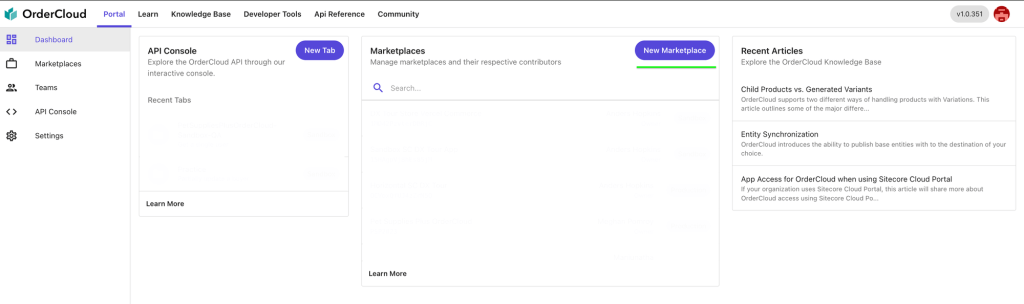
After a successful registration, you will be redirected to the OrderCloud Portal and see the OrderCloud Dashboard. Here, you can find previously created marketplaces and create a new one.

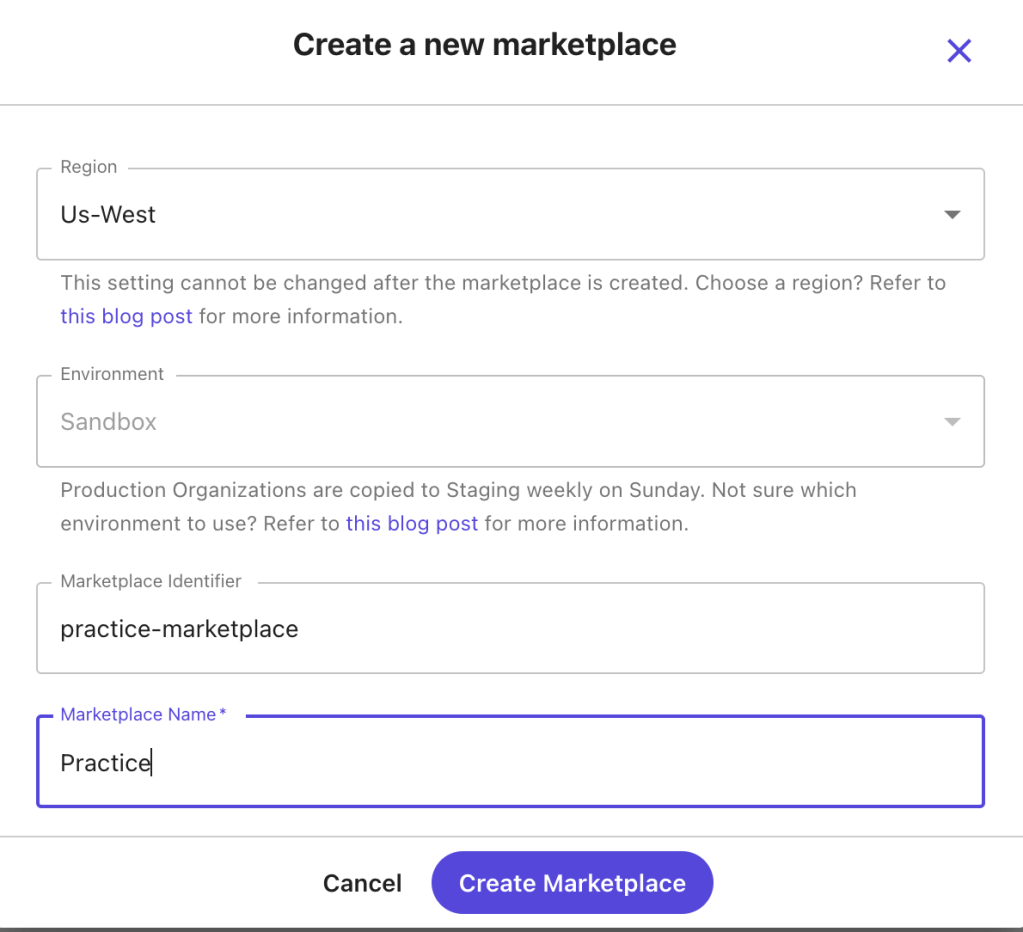
Click on the “New Marketplace” button to open the creation screen where you’ll provide essential information such as:

  1. Region
  2. Environment
  3. Marketplace Identifier
  4. Marketplace Name

After filling in the details, click “Create Marketplace”. Your first marketplace is now successfully created, showing necessary information and an option to delete the marketplace.

Next, you will learn about other aspects of OrderCloud, such as security profiles, API clients, buyers, and users.

Security Profile 🔐

Security profiles are collections of roles, each containing specific permissions that control access to various parts of an application. Think of them as predefined sets of keys, each unlocking different doors.

Creating a Security Profile

In the sidebar, find the “API Console” menu where you can interact with OrderCloud.

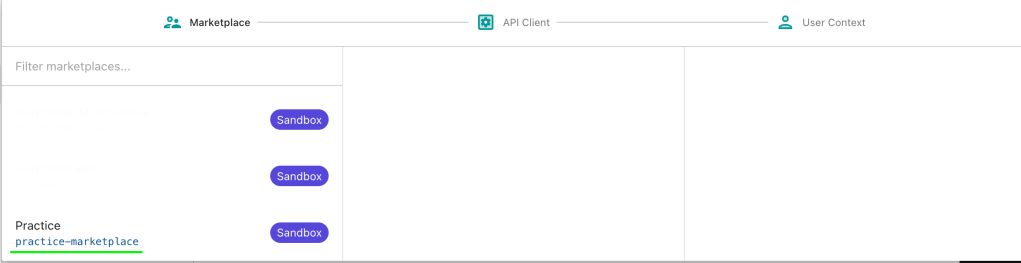
First, select a context (Marketplace). Choose the practice marketplace we created earlier.

  1. Select the “Security Profile” option.
  2. Click “Create New Security Profile”.

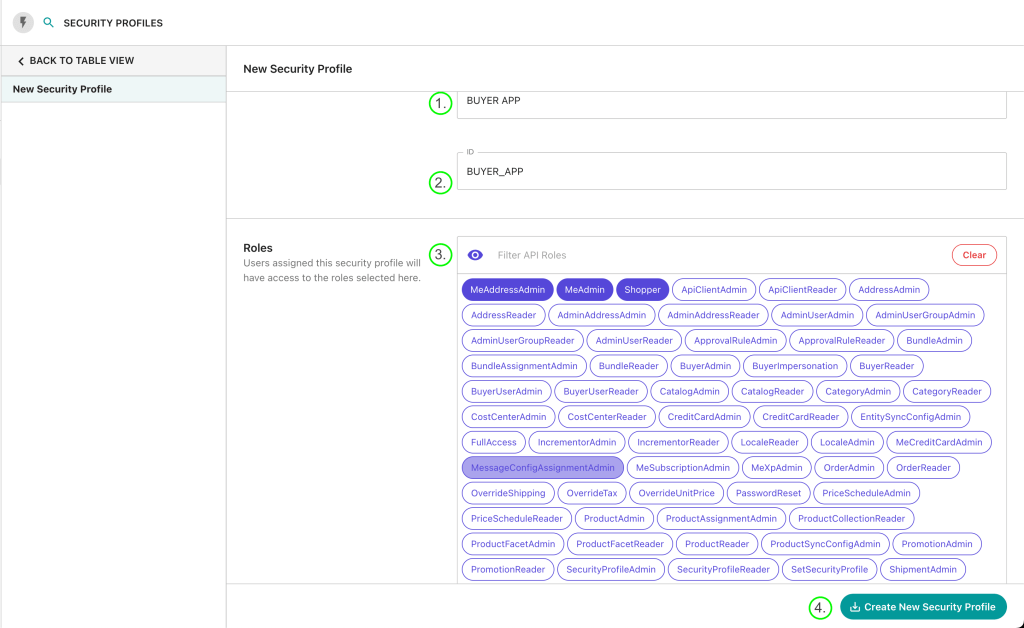
Here, we’ll create a security profile for buyers and assign specific roles, such as accessing the commerce app, creating user profiles, and viewing product lists and details.

  1. Name: Provide a name for your security profile (e.g., BUYER APP).
  2. ID: Provide a unique ID for your security profile.
  3. Assign the necessary roles for a buyer user and click “Create New Security Profile”. I’ve assigned three roles which are essential for a buyer.

API Client

API Clients are unique gateways to your marketplace’s data. They control how different parties (like customers, admins, or suppliers) interact with your data. Each API Client has specific rules and permissions determining who can access what information and how.

Creating an API Client

Let’s create an API Client to access our OrderCloud app.

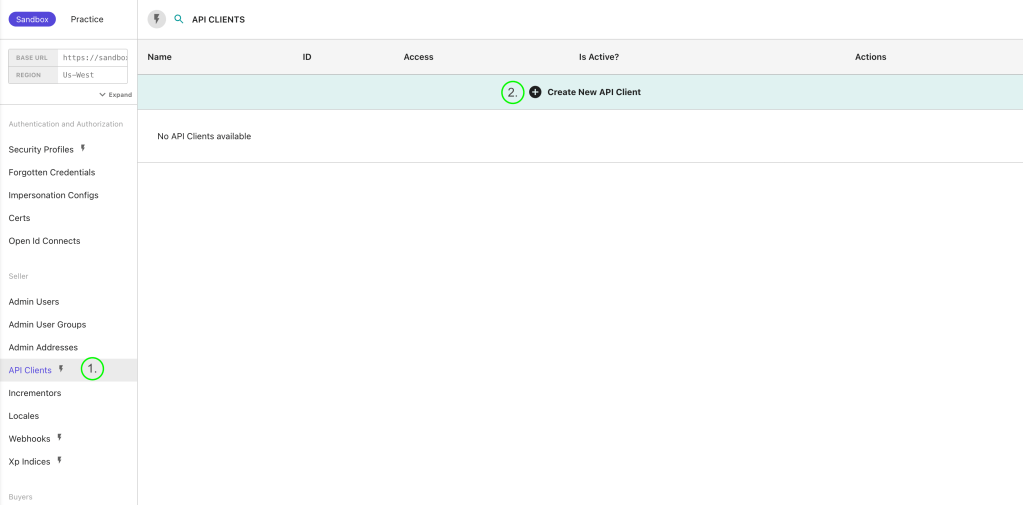
  1. Go to the “API Client” menu and create a new API Client.

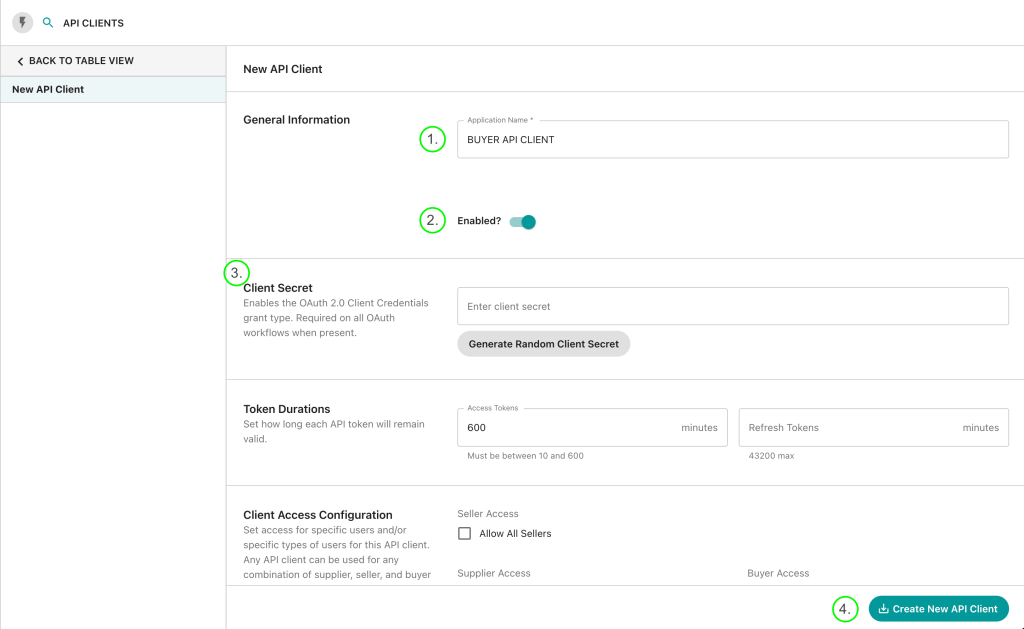
Provide the following information:

  • Name: Provide a name (e.g., BUYER API CLIENT).
  • Enabled: Set to True (default is True, can be disabled for specific purposes).
  • Client Secret (Optional): If provided, it also needs to be configured in your frontend app.
  • Token Duration: Set expiration times for access and refresh tokens (default: 600 minutes for access tokens and 0 for refresh tokens).

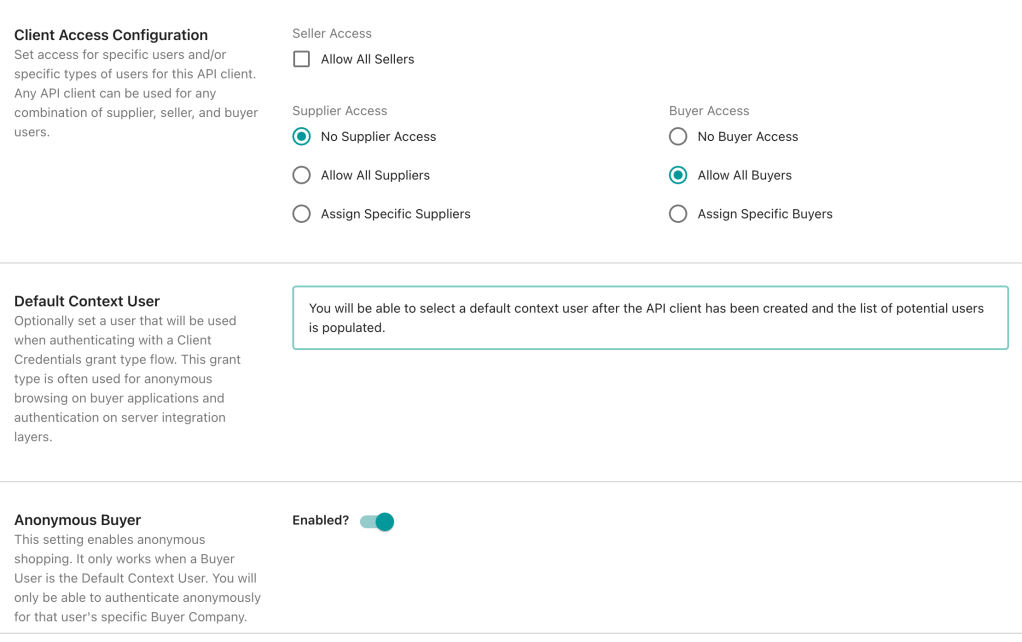
Client Access Configuration: Select client access for specific users. Here, I selected “No supplier” (no seller user can use this API Client) and “Allow All buyers” (all Buyer users can use this client ID).

Default Context User: Provide a default user (used to generate the token to access the buyer app) which we will create next.

Anonymous Buyer: Allows anonymous buyer users.

Finally, click on the “Create New API Client” button.

Creating a Buyer and Their User

Buyers

A user group under which you can create users who can access an application. For example, we are end users for companies like Amazon, Flipkart, Myntra, etc. Here, this is a user group for all buyer users, meaning if we assign a security profile to this buyer group, all users created under it will automatically get their roles.

Creating a Buyer Group

To create a Buyer Group:

  1. Navigate to the “Buyer” menu in the sidebar.
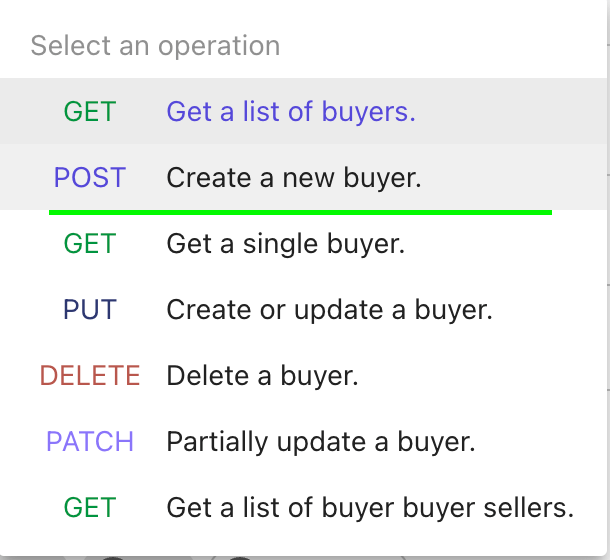
  2. Select an option from the API request.

Provide the following information:

  1. ID: Provide a unique ID (e.g., BUYER GROUP).
  2. Active: Set to true (default is false, ensure it’s true to access the end-user app).
  3. Name: Provide a respective name and hit the send button.

You have successfully created a Buyer Group. Now, let’s move to the next step: creating a user for our app.

Assigning a Security Profile to Buyer Group

Assign a Security Profile to the Buyer Group, meaning users created under this group will automatically receive the roles specified in the BUYER APP Security Profile.

Go to the Security Profile and then select the below request

Then Assign BUYER_APP Security profile to the BUYER_GROUP API Client.

Creating a Buyer User

Under the Buyer menu, you can see an option to create a new buyer user.

  • Select a POST request to create a new user.
  • Provide necessary information like Name, ID, Active status, Username, Password, First Name, Last Name, Email, and Phone. There is also an Extended Properties (xp) field for additional information like user image, gender, birthdate, etc.

This user has the AvailableRoles property, provided in our security profile.

😊 Hope you’re enjoying the read. Let’s move to the next step.

Connecting Your Next.js App with OrderCloud

OrderCloud provides a starter kit to easily create a new application. Clone it from the GitHub link.

  1. Open the folder in your favorite IDE.
  2. Go to your project directory.

Folder structure:

Then, Create a new .env file and paste the following variables:

NEXT_PUBLIC_OC_CLIENT_ID=6DAEFB90-A497-4532-907E-9EB5F9EAE7D5 
NEXT_PUBLIC_OC_SCOPE=Shopper,MeAddressAdmin,MeAdmin
NEXT_PUBLIC_OC_BASE_API_URL=https://sandboxapi.ordercloud.io
NEXT_PUBLIC_OC_ALLOW_ANONYMOUS=false

Provide the API Client ID you created for the buyer.

Run the npm run dev command, and open localhost:3000.

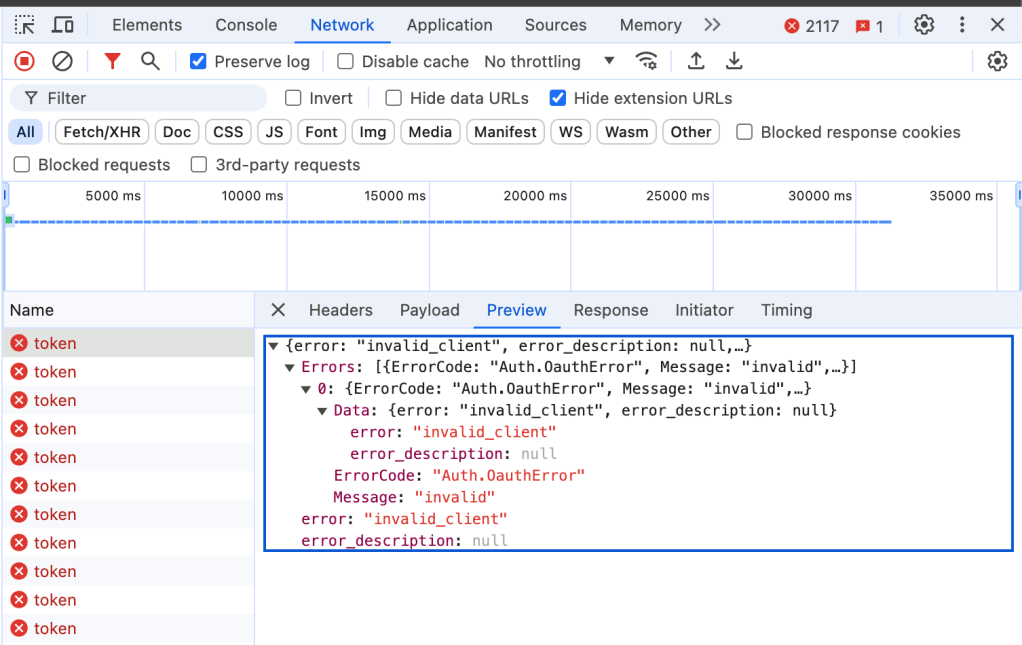
If you face an error like below, you might have missed selecting a default context user in your API Client.

To resolve this, assign a default context user in your API Client. I created a new user under the same Buyer Group and assigned it to the API Client.

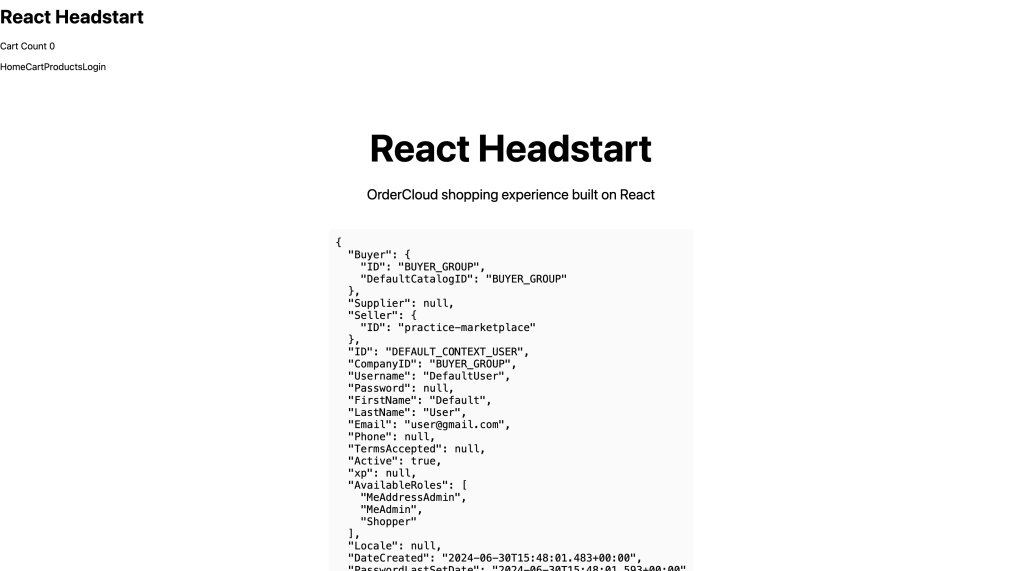
After restarting the app, you should see the following screen:

Congratulations! You have created your first OrderCloud app.

References

I hope you found this guide helpful.

Next.js Scaffolding Script: Simplifying Component Setup and Configuration

What is Scaffolding?

Scaffolding is the process of generating a component based on predefined templates. Typically, when we create a new component, we start from scratch and follow the same repetitive steps each time. This approach can be time-consuming. Scaffolding, on the other hand, provides a basic template with essential code, saving you the effort of rewriting the same code repeatedly.

How Can We Achieve Scaffolding?

Sitecore JSS provides an out-of-the-box (OOTB) Component Scaffolding feature, but it has some limitations. By leveraging the code provided by Sitecore, we can enhance the scaffolding to include additional files, such as Storybook and mock-data files, when creating a scaffolded component. With some configurations, we can also generate various other files.

To create a new component using scaffolding, use the following command:

jss scaffold ComponentName

or

npm run scaffold ComponentName

Scaffolding Script

You can find the scaffolding script in your Next.js src directory:

/src/[project_name]/scripts/scaffold-component/index.ts

Inside the index.ts file, the first step is to define the component name format. You can modify the regular expression based on your requirements:

const nameParamFormat = new RegExp(/^((?:[\\\\w\\\\-]+\\\\/)*)([A-Z][\\\\w-]+)$/);

This means component names should start with a capital letter and contain only letters, numbers, underscores, or dashes.

const componentArg = process.argv[2];
const args = process.argv.slice(3);
// These lines will process the arguments provided in the CLI command.

Next, specify the default configuration, including the component template, component path, and component name.

const defaultConfig: ScaffoldComponentPluginConfig = {
componentPath: regExResult[1],
componentName: regExResult[2],
componentTemplateGenerator: generateComponentSrc,
args: args,
nextSteps: [],
};

generateComponentSrc is the template name imported from another file.

import generateComponentSrc from 'scripts/templates/component-src';

This is the location of the component template (you can create this file in another location if needed). Finally, you’ll find the implementation of the component execution config.

const config = (Object.values(plugins) as ScaffoldComponentPlugin[])
.sort((p1, p2) => p1.order - p2.order)
.reduce((config, plugin) => plugin.exec(config), defaultConfig);

Component Script

Inside the /src/[project_name]/scripts/scaffold-component/plugins directory, you’ll find the component.ts file, which includes the component configuration.

import path from 'path';
import { scaffoldFile } from '@sitecore-jss/sitecore-jss-dev-tools';
import { ScaffoldComponentPlugin, ScaffoldComponentPluginConfig } from '..';
class ComponentPlugin implements ScaffoldComponentPlugin {
  order = 99;
 exec(config: ScaffoldComponentPluginConfig) {
    const { componentName, componentPath } = config;
    const filename = `${componentName}.tsx`;
    const componentRoot = componentPath.startsWith('src/') ? '' : 'src/components/' + componentName;
    const outputFilePath = path.join(componentRoot, componentPath, filename);
    const template = config.componentTemplateGenerator(componentName);
    const componentOutputPath = scaffoldFile(outputFilePath, template);
    return {
      ...config,
      componentOutputPath,
    };
  }
}
export const componentPlugin = new ComponentPlugin();

This script retrieves the component name and path from the config file, determines the output directory, and uses the scaffoldFile function provided by Sitecore JSS to generate the component based on the template.

Component Template File

Inside the src/[project_name]/scripts/templates directory, you’ll find the component-src.ts file where you can define your component snippet. You can also use the OOTB file. Here’s an example that also includes a Tailwind variant snippet:

function generateComponentSrc(componentName: string): string {
const component = componentName.charAt(0).toLowerCase() + componentName.slice(1);
return `import React from 'react';
import { withDatasourceCheck } from '@sitecore-jss/sitecore-jss-nextjs';
import { tv } from 'tailwind-variants';
import { ComponentProps } from 'lib/component-props';

export type ${componentName}Props = ComponentProps & {
fields: unknown;
};

const ${component}Variants = tv({
slots: {
base: ['${component}'],
},
compoundSlots: [{ slots: [], class: [] }],
variants: {
size: {
mobile: {},
desktop: {},
},
},
}, { responsiveVariants: ['lg'] });
const ${componentName}: React.FC<${componentName}Props> = ({ fields, params }) => {
const { base } = ${component}Variants({ size: { initial: 'mobile', lg: 'desktop' } });
if (!fields) return <></>;
return (
<div className={base({ className: params?.Style ?? '' })}>
${componentName}
</div>
);
};
export default withDatasourceCheck()<${componentName}Props>(${componentName});
`;
}
export default generateComponentSrc;

Adding Storybook and Mock-Data Files

If your project requires story book then here the example which describe how to scaffold these files also using the scaffold command.

To add Storybook and mock-data files, first create two new templates in the src/[project_name]/scripts/templates directory:

  1. story-src.ts
  2. mock-src.ts

story-src.ts

function generateStorySrc(componentName: string): string {
return `import type { Meta, StoryObj } from '@storybook/react';
import ${componentName}, { ${componentName}Props } from '../../../components/${componentName}/${componentName}';
import defaultData from './${componentName}.mock-data';
const meta: Meta<typeof ${componentName}> = {
title: 'Components/${componentName}',
component: ${componentName},
tags: ['autodocs'],
argTypes: {},
};
export default meta;
type Story = StoryObj<typeof ${componentName}>;
export const Default: Story = {
render: (args) => {
return <${componentName} {...args} />;
},
args: defaultData,
};
`;
}
export default generateStorySrc;

mock-src.ts

function generateMockSrc(componentName: string): string {
return `import { ${componentName}Props } from 'components/${componentName}/${componentName}';const defaultData: ${componentName}Props = {
rendering: {
componentName: '${componentName}',
dataSource: '{00000000-0000-0000-0000-000000000000}',
},
params: {},
fields: {},
};
export default defaultData;
`;
}
export default generateMockSrc;

Next, create two files similar to component.ts inside the plugins folder, configuring these files with the template path and output directory path. For an example, mock.ts:

import path from 'path';
import { scaffoldFile } from '@sitecore-jss/sitecore-jss-dev-tools';
import { ScaffoldComponentPlugin, ScaffoldComponentPluginConfig } from '..';
import generateMockSrc from 'scripts/templates/mock-src';
class MockPlugin implements ScaffoldComponentPlugin {
order = 80;
exec(config: ScaffoldComponentPluginConfig) {
const { componentName, componentPath } = config;
const filename = `${componentName}.mock-data.ts`;
const componentRoot = componentPath.startsWith('src/')
? ''
: 'src/stories/components/' + componentName;
const outputFilePath = path.join(componentRoot, componentPath, filename);
const componentOutputPath = scaffoldFile(outputFilePath, generateMockSrc(componentName));
return {
...config,
componentOutputPath,
};
}
}
export const mockPlugin = new MockPlugin();
Create a similar file for Storybook, changing the output destination and template imports.

Finally, register your new .ts files in your index.ts file:

const storyConfig: ScaffoldComponentPluginConfig = {
componentPath: regExResult[1],
componentName: regExResult[2],
componentTemplateGenerator: generateStorySrc,
args: args,
nextSteps: [],
};

storyConfig.nextSteps.push(
chalk.green(`
Scaffolding of ${storyConfig.componentName} complete.
Next steps:`)
);

const mockConfig: ScaffoldComponentPluginConfig = {
componentPath: regExResult[1],
componentName: regExResult[2],
componentTemplateGenerator: generateMockSrc,
args: args,
nextSteps: [],
};

mockConfig.nextSteps.push(
chalk.green(`
Scaffolding of ${mockConfig.componentName} complete.
Next steps:`)
);

Add the above configuration inside the index.ts file. The nextSteps property provides feedback to confirm successful file creation.

Congratulations! You’ve now created your own scaffolding files and can customize them further to suit your needs.