
Part 1: Enhancing Sitecore JSS with Global Context Data Injection

When developing with Sitecore JSS, managing global data efficiently becomes a critical consideration for enterprise applications. While component-level GraphQL queries and page-specific resolvers have their place, there are scenarios where you need consistent data available across your entire application without repetitive fetching. This article explores how to enhance your Sitecore implementation by customizing the Sitecore context to include global configuration data, resulting in a more efficient and maintainable codebase.

Why Customize Sitecore Context Data?

Modern web applications often require global settings and configuration that need to be accessible throughout the application. Rather than fetching this data repeatedly at the component level or passing it down through numerous props, injecting it directly into the Sitecore context provides a clean solution.

By leveraging middleware plugins or page-props-factory plugins, you can seamlessly integrate data from various sources—GraphQL, OrderCloud, custom APIs, or even static data—into the Sitecore context. This data then becomes accessible application-wide via the useSitecoreContext() hook.

Implementation Guide

Let’s implement this approach using a page-props-factory-plugin. This allows us to intercept and enhance the page props before they’re delivered to the page components.

Step 1: Create a Plugin File

Navigate to /src/lib/page-props-factory/plugins and create a new TypeScript file for your context data resolver. In this example, we’ll create graphql-data.ts to fetch account settings for authentication purposes:

import { SitecorePageProps } from 'lib/page-props';
import { GetServerSidePropsContext, GetStaticPropsContext } from 'next';
import { Plugin } from '..';
import { ConfigurationData, getConfigData } from '../graphql/configuration';

class GraphqlDataPlugin implements Plugin {
  order = 1.5; // define the execution order

  async exec(
    props: SitecorePageProps,
    _context: GetServerSidePropsContext | GetStaticPropsContext
  ) {
    const siteName = props.site.name; //sitename
    const language = props.layoutData.sitecore.context.language ?? 'en';  //language
    //if data is not available in cache then it will be new call
    const configuration = await getConfigData(siteName, language)
		//finally set data on sitecore context
    props.layoutData.sitecore.context.graphQlData = {
      configuration,
    };

    return props;
  }
}

//types for the response
export interface GraphQlData {
  configuration: ConfigurationData | null;
}

export const graphqlDataPlugin = new GraphqlDataPlugin();

This plugin implements the Plugin interface, which requires:

  • An order property to define execution priority
  • An exec function that runs during page props generation

Step 2: Configure Data Retrieval

Create a dedicated configuration file to handle GraphQL queries. In this example, we’re retrieving account settings:

import graphqlClientFactory from 'lib/graphql-client-factory';

// eslint-disable-next-line @typescript-eslint/no-explicit-any
export type ConfigurationData = Record<string, any>;

export async function getConfigData(
  siteName: string,
  language: string
): Promise<ConfigurationData> {
  const path = `/sitecore/content/[your_tenentName]/${siteName}/Data/Commerce/Accounts`;

  const gqlClient = graphqlClientFactory({});
  const response = await gqlClient.request<ConfigurationGraphQLResponse>(accountSettingGraphQl, {
    path,
    language,
  });

  const responseObj: ConfigurationData = {};
  response?.item?.fields.forEach(({ name, value }) => {
    responseObj[name] = value;
  });
  return responseObj;
}

//define a response type
type ConfigurationGraphQLResponse = {
  item: {
    fields: {
      name: string;
      // eslint-disable-next-line @typescript-eslint/no-explicit-any
      value: any;
    }[];
  };
};

//graphQL query 
const accountSettingGraphQl = `
    query AccountsSetting($path: String!, $language: String!) {
    item(path: $path, language: $language) {
      fields(ownFields: true) {
        name
        value
      }
    }
  }
  `;

After this you just need to save you changes and run the npm command npm run start:connected

After page load you can see you data on console using __NEXT_DATA__

Step 4: Access Your Data

After implementing the plugin, the data becomes available in your components through the useSitecoreContext hook:

import { useSitecoreContext } from '@sitecore-jss/sitecore-jss-nextjs';

const MyComponent = () => {
  const { sitecoreContext } = useSitecoreContext();
  const graphQlData = sitecoreContext.graphQlData
  
  // Access your configuration data
  const configuration = graphQlData?.configuration;
  
  return (
    // Your component JSX
  );
};

Conclusion: A Foundation for Scalable Context Management

By customizing the Sitecore context with global data, you set the foundation for a scalable, maintainable application. This approach empowers developers to access configuration data across the entire app without excessive fetch calls or deeply nested props. In the next part, we’ll take this further by implementing a smart caching mechanism to improve performance.

Happy Coding 🎉

Implementing Range Facets in Sitecore Search with Next.js

Range facets are powerful tools for filtering numerical data like prices, dates, or quantities in your search interface. This guide walks through implementing a range facet in Sitecore Search and integrating it with a Next.js application.

Part 1: Configuring Range Facets in Sitecore Search

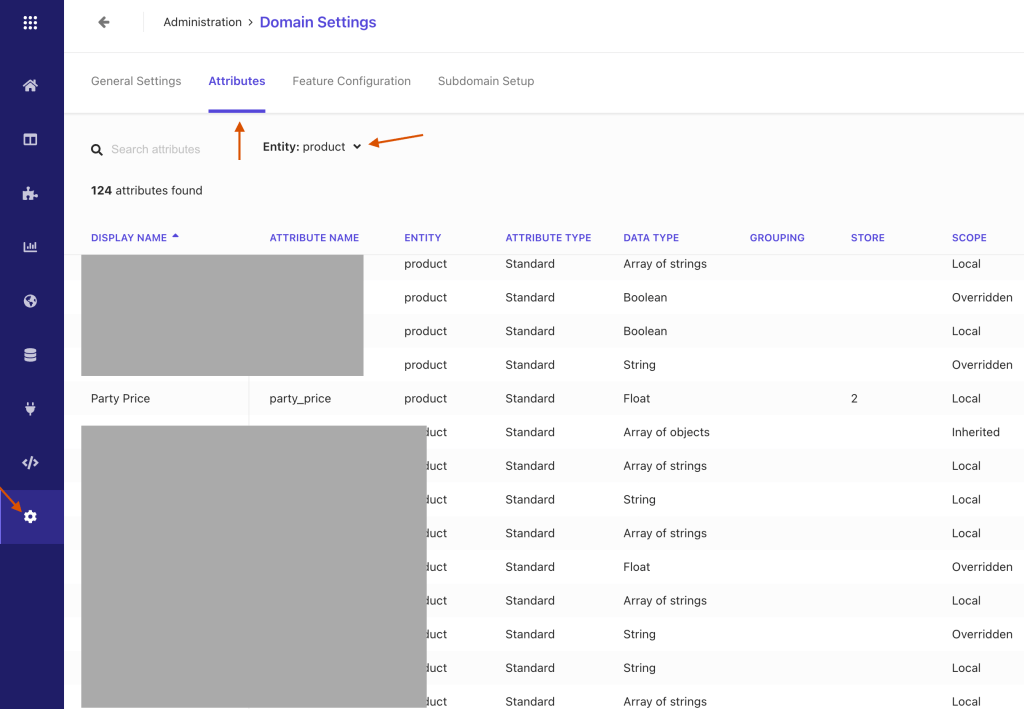
In first step , we will create a “range” facet in Sitecore Search, In my dataset I have party_price attribute field, which is already configured within Sitecore Search. These attributes are readily accessible through the Domain Settings,

which you can find from Administration → Domain Settings → Attributes

Then you need to select a product entity or All from Entity dropdown

Click on party_price field

you will find some configuration inside it

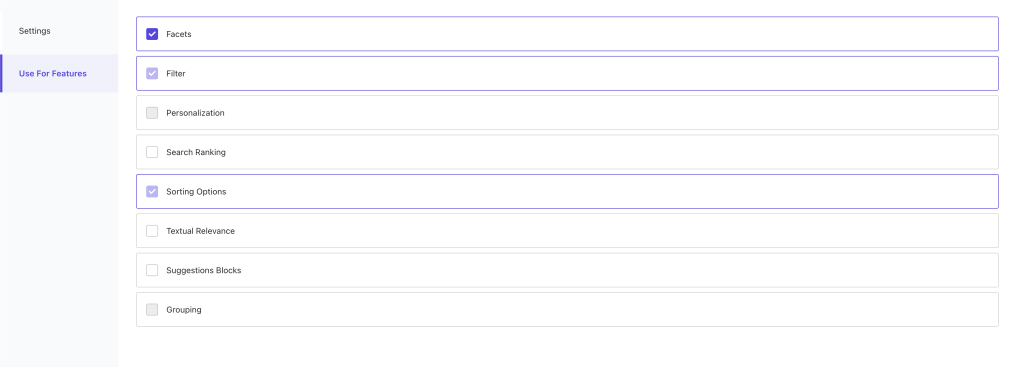
To use this field as facet, navigate to the Use For Features and check the Facet checkbox

Save the changes and publish it. (Most forgettable 😄)

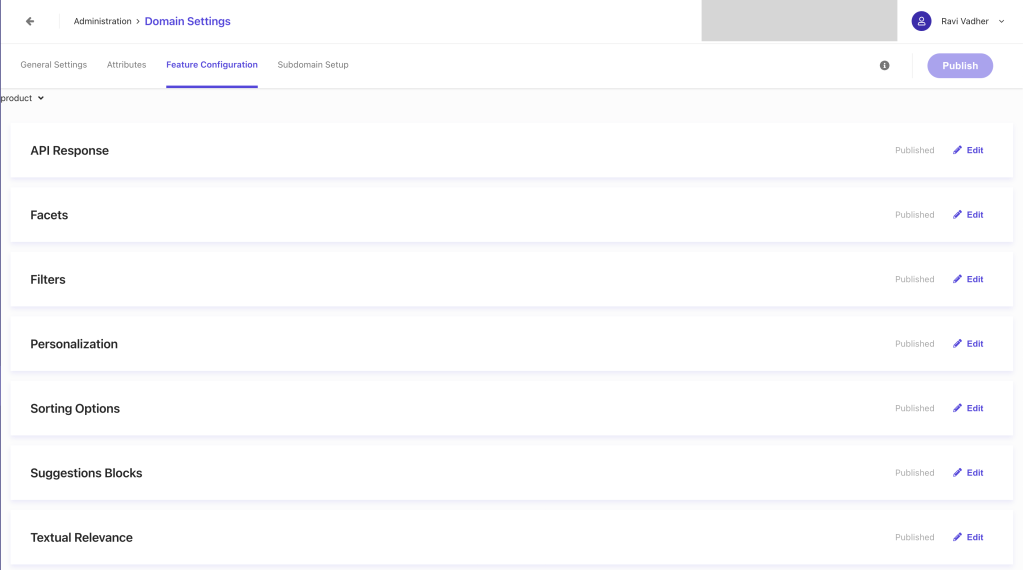
Now, our next step is to configuring our Facet , so for that we will again navigate to Domain settings and then click on the Feature Configuration

You can see list features like, API Response, Facets, Filters, Personalization etc. As we want to configure the Facet will navigate to the Facet feature.

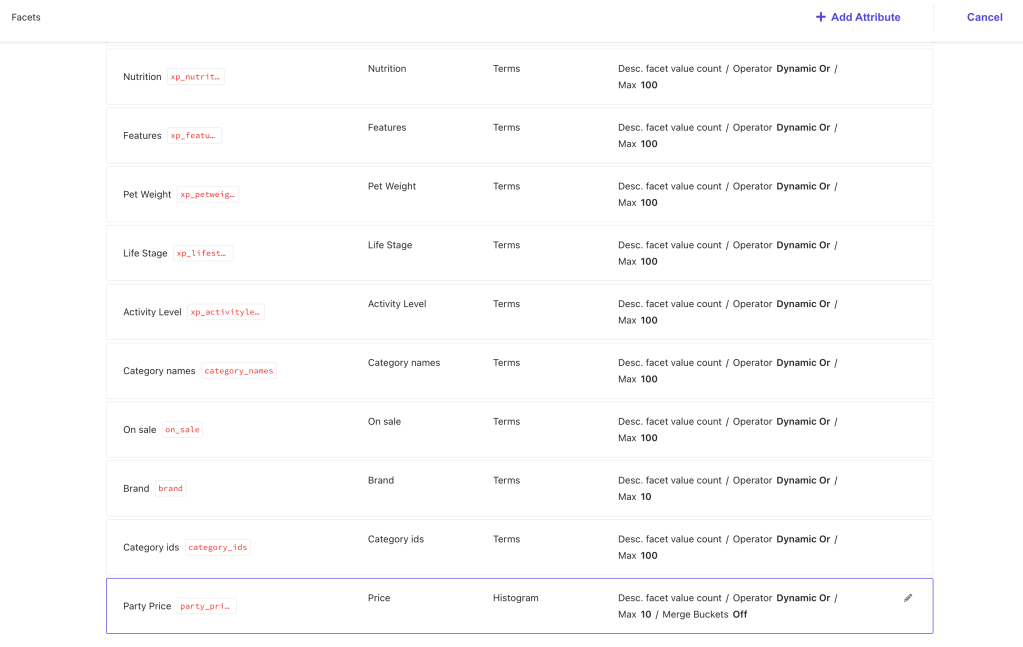
From the facet list you can find the newly created facet in my case It will be party_price

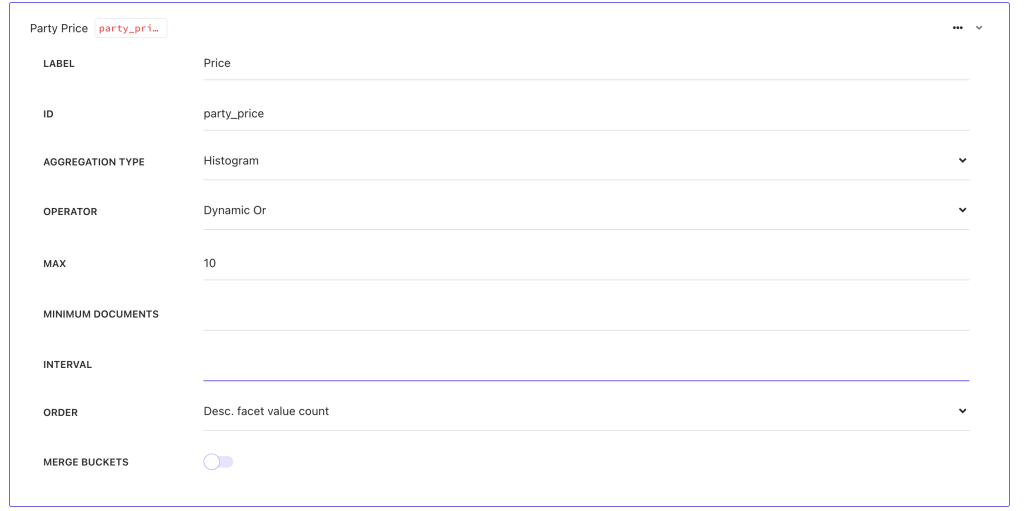
click on the party_price facet for configuration.

  1. Ensure that:
    • AGGREGATION TYPE is set to Histogram.
    • OPERATOR is set to Dynamic OR.
  2. Save and publish the changes.

I’m skipping the Sitecore Configuration part as this is all about the “Range” facet. (I’ll cover in Facet configuration part).

This is all from Siirecore Search facet configuration. Now we’ll jump into Next js configuration part.

Part 2: Implementing Range Facets in Next.js

Configure Search Results Widget:

To setup the range filter first of all you need to pass the config while calling the useSearchResults widget.

const searchResults = useSearchResults<ProductSearchResultModel, InitialState>({
    config: {
      facets: {
        party_price: { type: 'range' },
      },
    },

in above code snippet you can see I have configured the party_price as type of range. If you are not configure the specific type it would behave differently !

Create the Range Facet Component:

Now we will create the Price Facet Component where we will implement our facet things.

const PriceFacet = ({ facet }: FacetProps) => {
  const min = Math.floor(facet?.value?.[0].min);
  const max = Math.floor(facet?.value?.[facet?.value.length - 1].max);
  return (
    <SearchResultsFacetValueRange
      max={max}
      min={min}
      autoAdjustValues={false}
      className={clsx(styles['sitecore-range-facet-root'], '!mt-4')}
    >
      <RangeFacet.Track
        className={clsx(
          styles['sitecore-range-facet-track'],
          '!block !bg-color-brand-primary-1-base !h-2'
        )}
      >
        <RangeFacet.Range className={clsx(styles['sitecore-range-facet-range'])} />
      </RangeFacet.Track>
      <RangeFacet.Start
        className={clsx(
          styles['sitecore-range-facet-start'],
          'hover:!bg-white hover:!border-[1px] hover:!border-color-brand-primary-1-base '
        )}
      >
        {(value) => <span className="!top-[-20px]">${value}</span>}
      </RangeFacet.Start>
      <RangeFacet.End
        className={clsx(
          styles['sitecore-range-facet-end'],
          'hover:!bg-white hover:!border-[1px] hover:!border-color-brand-primary-1-base '
        )}
      >
        {(value) => <span className="!top-[-20px]">${value}</span>}
      </RangeFacet.End>
    </SearchResultsFacetValueRange>
  );
};

You can also override the style based on you desiIn requirement in is codebase i’m using some tailwind 🧑🏻‍🎨 classes for customisation.

Render the Range Facet Conditionally:

As this is range facet, for rendering it we have to do one additional check while rendering the regular facet.

<AccordionFacets.Facet
      facetId={facet.name}
      key={facet.name}
      className={facetRoot({ className: 'border-b-[0px]' })}
    >
      <FacetHeader facet={facet} actions={actions} settings={settings} />
      <AccordionFacets.Content>
        {facet.name === 'party_price' ? (
          <PriceFacet facet={facet} actions={actions} settings={settings} />
        ) : (
          <StandardFacet facet={facet} actions={actions} settings={settings} />
        )}
      </AccordionFacets.Content>
    </AccordionFacets.Facet>

As of now i’m compering with the static value, but there is also an other way to do this.

Build a Custom Range Label:

Here some more things to keep in your note that we also have to create separate label for the range it will not work like other facet.

for that you can export the function and can reuse it.

export const buildRangeLabel = (min: number | undefined, max: number | undefined): string => {
// Constructs the label string for the range (e.g., "$10 - $100", "< $10", "> $100").
  return typeof min === 'undefined'
    ? `< $${max}`
    : typeof max === 'undefined'
    ? ` > $${min}`
    : `$${min} - $${max}`;
};

export const buildFacetLabel = (selectedFacet: any, overridenLabel: string) => {
  if ('min' in selectedFacet || 'max' in selectedFacet) {
    return `${buildRangeLabel(selectedFacet.min, selectedFacet.max)}`;
  }
  return `${overridenLabel}`;
};

here i’m also passing the overridenLabel if you want to override the existing label from Sirecore CMS side. otherwise you can remove it.

Implement a Custom Facet Header:

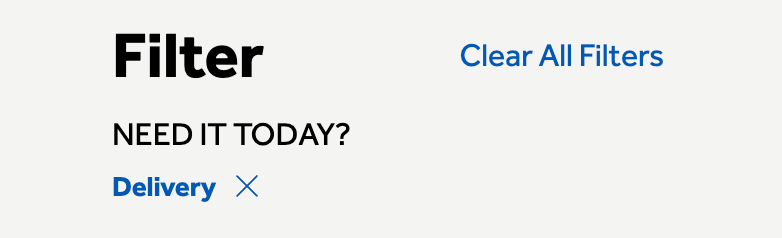
as I’m using separate FacetHeader component i’ll be going use buildFacetLabel for dynamic label. (which are shown as selected facet at top of the facet section)

//Implement a Custom Facet Header
function FacetHeader({ facet, actions, settings }: FacetProps) {
  const selectedFacets = useSearchResultsSelectedFacets();
  const selectedFacetIds = selectedFacets.map((x) => x.id);
  const isFacetSelected = selectedFacetIds.includes(facet.name);
  const dictionary = useDictionary();
  return (
    <AccordionFacets.Header className={'flex flex-col justify-between'}>
      <AccordionFacets.Trigger className={styles['sitecore-accordion-trigger'] + ' group'}>
        <span className={facetLabel()}>
   -->     {buildFacetLabel(selectedFacets, settings?.facetLabelOverride || facet.label)}
        </span>
        {isFacetSelected ? (
          <span
            className={clearLabel()}
            // This is a span instead of a button because we are already inside a button
            onClick={(e) => {
              e.stopPropagation();
              return actions.onRemoveFilter({ facetId: facet.name, type: 'range' });
            }}
          >
            {dictionary.getDictionaryValue('ClearFacetPLP', 'Clear')}
          </span>
        ) : null}
        <IconHelper className={facetIcon()} icon={'chevron-down'} />
      </AccordionFacets.Trigger>
    </AccordionFacets.Header>
  );
}

Final result 🥳

You can also deep dive some additional configuration ⚙️

Default facet selection

To set the selected filter on the url (so, you can use as default selected filter on page load), we can do something like:

function facetToUrl(selectedFacets: FacetValue[]) {
// Converts selected facets to a URL hash string.  Handles range facets specifically.
  if (!selectedFacets.length) {
    return '';
  }
  const facets: Record<string, string> = {};
  selectedFacets.forEach((facet) => {
    let value = facet.valueLabel ?? facet.facetValueText;
    if (facet?.type === 'range') {
      value = `${facet?.min}-${facet.max}`;
    }
    // Depending on when it's called, sometimes it comes as facet.valueLabel, other times it's facet.facetValueText
    if (!value) {
      return;
    }
    const key = FACET_PREFIX + facet.facetId;
    if (!facets[key]) {
      facets[key] = '';
    } else {
      facets[key] += '|';
    }
    facets[key] += value;
  });
  const params = new URLSearchParams(facets);

  return params.toString();
}

//Hook to keep facets synchronized with the URL.
export const useEnsureFacetUrl = (
  actions: SearchResultsWidget['ActionProps'],
  facets: SearchResponseFacet[]
) => {
  const router = useRouter();
  const selectedFacetsFromApi = useSearchResultsSelectedFilters();

  const selectedFacetsFromApiUrl = decodeURI(facetToUrl(selectedFacetsFromApi));

  const [prevFacetUrl, setPrevFacetUrl] = useState<string>();

  useEffect(() => {
    if (prevFacetUrl === undefined) {
      setPrevFacetUrl(router.asPath.split('#')[1] ?? '');
    } else {
      if (prevFacetUrl !== selectedFacetsFromApiUrl) {
        setPrevFacetUrl(selectedFacetsFromApiUrl);
        router.push(
          {
            pathname: window.location.pathname,
            // window.location.search includes the '?' if there is a querystring.
            // This caused extra '?' to be added each time.
            // If there is no querystring, there is no '?' so this issue wasn't caught earlier.
            query: window.location.search.replace(/^\\?/, ''),
            hash: selectedFacetsFromApiUrl,
          },
          undefined,
          { scroll: false }
        );
      }
    }
  }, [actions, facets, prevFacetUrl, router, selectedFacetsFromApiUrl]);
};

final step for set up the selected facet in url is using this hook inside your search component

// In your search component:
// To ensure that facets are synced with the URL:
  useEnsureFacetUrl(actions, facets);

to use as default selection you need one more configuration to convert url to facet value

export function urlToFacet(hash: string) {
  const query = new URLSearchParams('?' + hash);

  const facets: FacetValue[] = [];

  for (const [key, value] of query.entries()) {
    if (!key.startsWith(FACET_PREFIX)) {
      continue;
    }
    const facetId = key.split(FACET_PREFIX)[1];
    const valueArray = value.split('|');
    valueArray.forEach((x) => {
      if (facetId == filterByPrice.partyPrice) {
        const minMax = x?.split('-');
        facets.push({ facetId, min: Number(minMax[0]), max: Number(minMax[1]) });
      } else {
        facets.push({ facetId, facetValueText: x });
      }
    });
  }
  return facets;
}

use use it you can call it from useSearchResults in state config as selectedFacets

 state: () => {
      const hasWindow = typeof window !== 'undefined';
      const hash = hasWindow ? window.location.hash.replace(/^#+/, '') : '';
      const facetsFromUrl = urlToFacet(hash); // Get selected facets from the URL.
      return {
        selectedFacets: facetsFromUrl, //Set these as the initial selected facets.
      };
    },
    

Conclusion

With this implementation, you’ll have a fully functional range facet in your Sitecore Search-powered Next.js application. The range facet supports:

  • Dynamic min/max values
  • Visual range slider
  • URL synchronization
  • Clear formatting of selected ranges
  • Proper integration with existing facet infrastructure

Happy coding! 🚀

Creating Your First OrderCloud App with Next.js: A Step-by-Step Guide

👋🏻 Hello

In this blog, you’ll take your first step with OrderCloud. You’ll learn some basics and see a demo on how to create your very first app using OrderCloud. So, let’s dive deep and explore the treasures of OrderCloud! 🪜 This is your first step towards mastering OrderCloud.

I’ll guide you through the essential concepts needed to create and connect your first OrderCloud app with Next.js. Let’s get started! 🏃🏻‍♂️

Creating Your First Marketplace

What is a Marketplace?

In the context of commerce, a marketplace is your central hub for managing everything—sellers, buyers, admins, products, and more.

Login/Sign-up in OrderCloud 🔑

You can create a free OrderCloud account and use the sandbox environment.

  1. Open the OrderCloud Portal.
  2. If you already have an account, log in with your credentials. Otherwise, register yourself by clicking here.

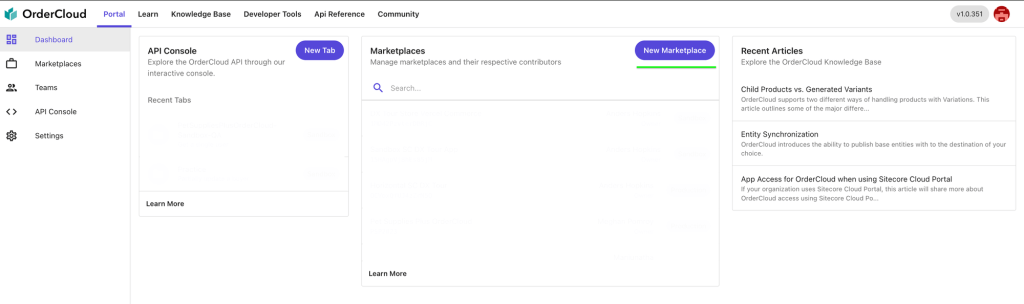
After a successful registration, you will be redirected to the OrderCloud Portal and see the OrderCloud Dashboard. Here, you can find previously created marketplaces and create a new one.

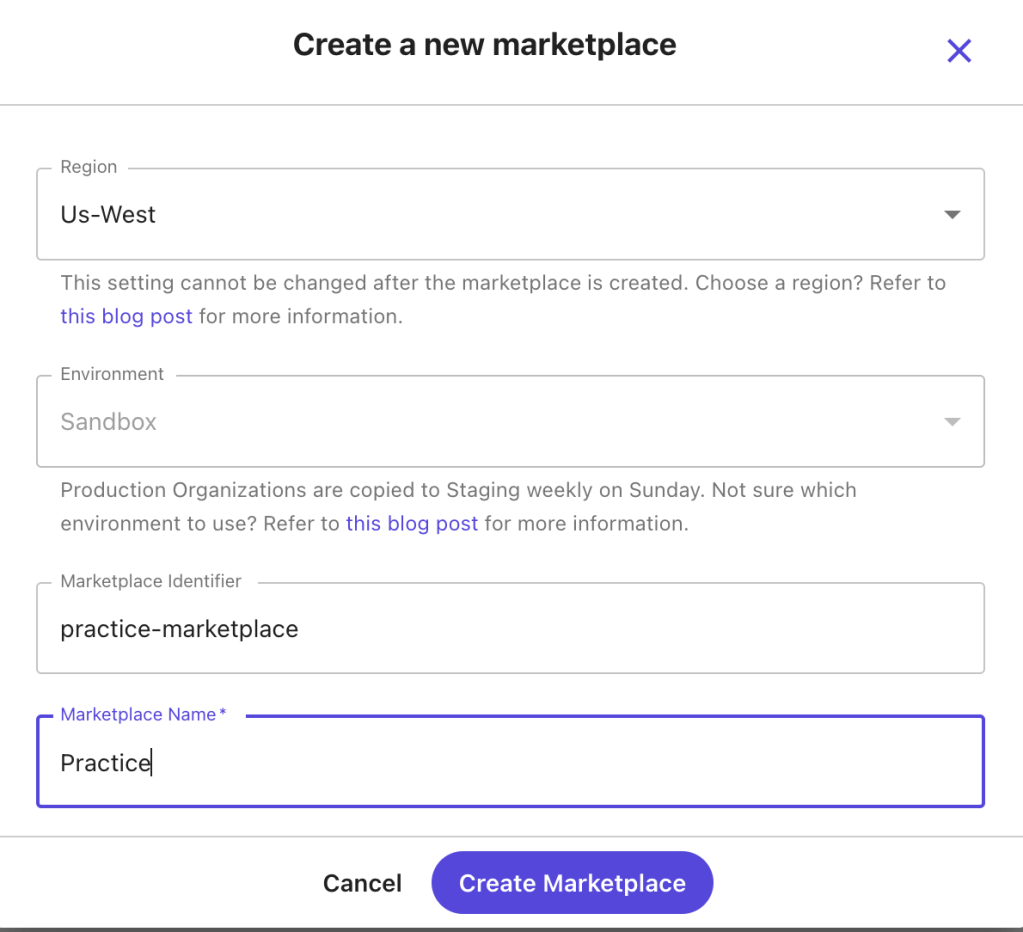
Click on the “New Marketplace” button to open the creation screen where you’ll provide essential information such as:

  1. Region
  2. Environment
  3. Marketplace Identifier
  4. Marketplace Name

After filling in the details, click “Create Marketplace”. Your first marketplace is now successfully created, showing necessary information and an option to delete the marketplace.

Next, you will learn about other aspects of OrderCloud, such as security profiles, API clients, buyers, and users.

Security Profile 🔐

Security profiles are collections of roles, each containing specific permissions that control access to various parts of an application. Think of them as predefined sets of keys, each unlocking different doors.

Creating a Security Profile

In the sidebar, find the “API Console” menu where you can interact with OrderCloud.

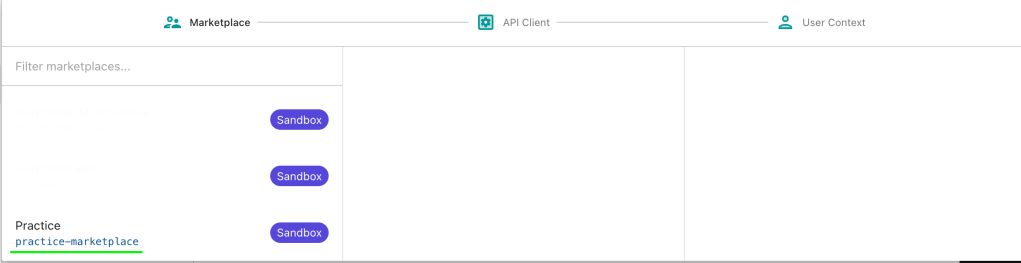
First, select a context (Marketplace). Choose the practice marketplace we created earlier.

  1. Select the “Security Profile” option.
  2. Click “Create New Security Profile”.

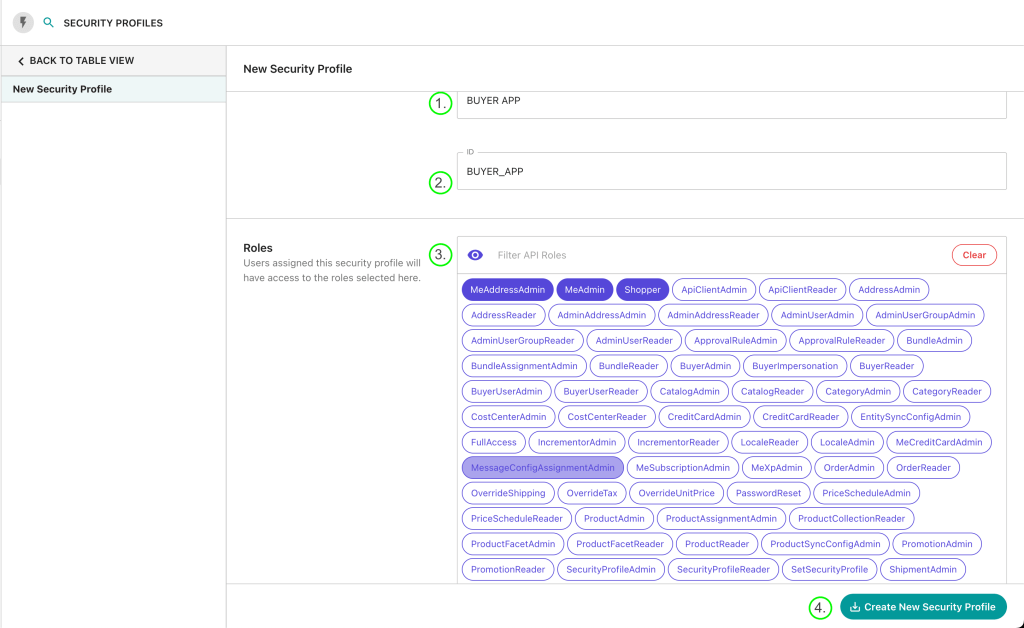
Here, we’ll create a security profile for buyers and assign specific roles, such as accessing the commerce app, creating user profiles, and viewing product lists and details.

  1. Name: Provide a name for your security profile (e.g., BUYER APP).
  2. ID: Provide a unique ID for your security profile.
  3. Assign the necessary roles for a buyer user and click “Create New Security Profile”. I’ve assigned three roles which are essential for a buyer.

API Client

API Clients are unique gateways to your marketplace’s data. They control how different parties (like customers, admins, or suppliers) interact with your data. Each API Client has specific rules and permissions determining who can access what information and how.

Creating an API Client

Let’s create an API Client to access our OrderCloud app.

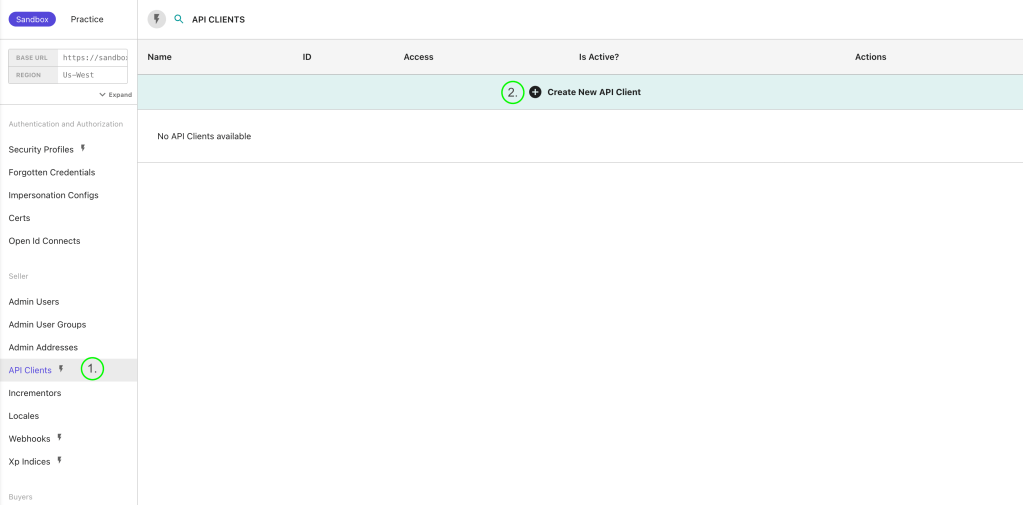
  1. Go to the “API Client” menu and create a new API Client.

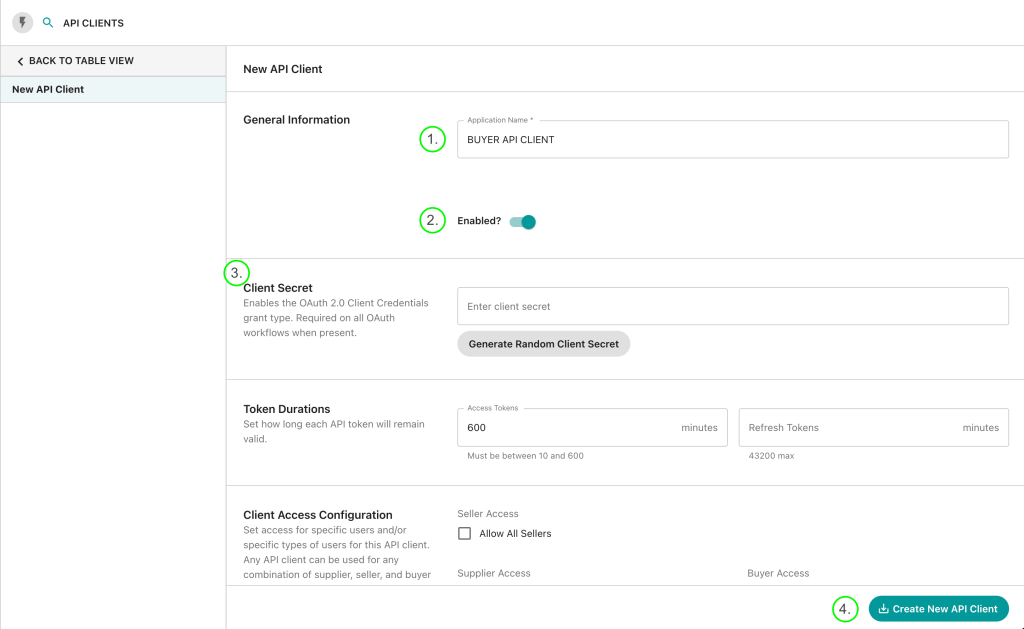
Provide the following information:

  • Name: Provide a name (e.g., BUYER API CLIENT).
  • Enabled: Set to True (default is True, can be disabled for specific purposes).
  • Client Secret (Optional): If provided, it also needs to be configured in your frontend app.
  • Token Duration: Set expiration times for access and refresh tokens (default: 600 minutes for access tokens and 0 for refresh tokens).

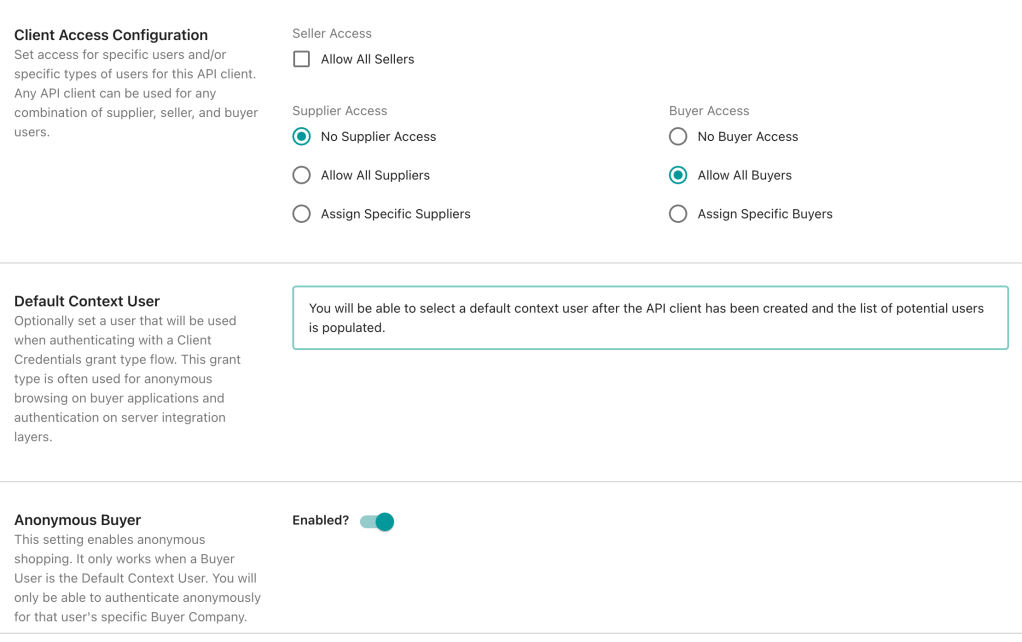
Client Access Configuration: Select client access for specific users. Here, I selected “No supplier” (no seller user can use this API Client) and “Allow All buyers” (all Buyer users can use this client ID).

Default Context User: Provide a default user (used to generate the token to access the buyer app) which we will create next.

Anonymous Buyer: Allows anonymous buyer users.

Finally, click on the “Create New API Client” button.

Creating a Buyer and Their User

Buyers

A user group under which you can create users who can access an application. For example, we are end users for companies like Amazon, Flipkart, Myntra, etc. Here, this is a user group for all buyer users, meaning if we assign a security profile to this buyer group, all users created under it will automatically get their roles.

Creating a Buyer Group

To create a Buyer Group:

  1. Navigate to the “Buyer” menu in the sidebar.
  2. Select an option from the API request.

Provide the following information:

  1. ID: Provide a unique ID (e.g., BUYER GROUP).
  2. Active: Set to true (default is false, ensure it’s true to access the end-user app).
  3. Name: Provide a respective name and hit the send button.

You have successfully created a Buyer Group. Now, let’s move to the next step: creating a user for our app.

Assigning a Security Profile to Buyer Group

Assign a Security Profile to the Buyer Group, meaning users created under this group will automatically receive the roles specified in the BUYER APP Security Profile.

Go to the Security Profile and then select the below request

Then Assign BUYER_APP Security profile to the BUYER_GROUP API Client.

Creating a Buyer User

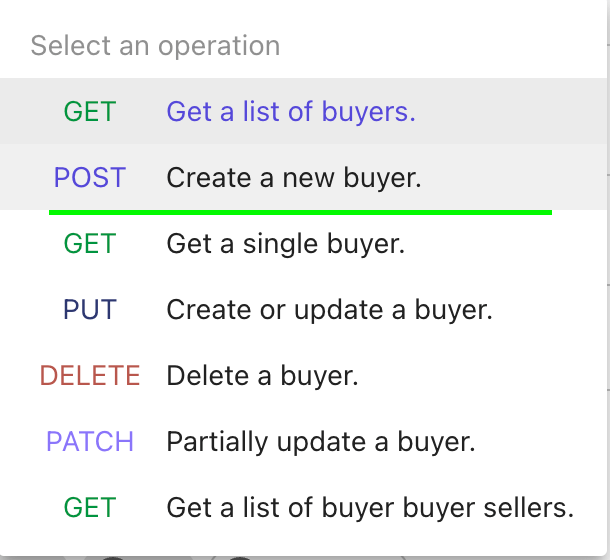
Under the Buyer menu, you can see an option to create a new buyer user.

  • Select a POST request to create a new user.
  • Provide necessary information like Name, ID, Active status, Username, Password, First Name, Last Name, Email, and Phone. There is also an Extended Properties (xp) field for additional information like user image, gender, birthdate, etc.

This user has the AvailableRoles property, provided in our security profile.

😊 Hope you’re enjoying the read. Let’s move to the next step.

Connecting Your Next.js App with OrderCloud

OrderCloud provides a starter kit to easily create a new application. Clone it from the GitHub link.

  1. Open the folder in your favorite IDE.
  2. Go to your project directory.

Folder structure:

Then, Create a new .env file and paste the following variables:

NEXT_PUBLIC_OC_CLIENT_ID=6DAEFB90-A497-4532-907E-9EB5F9EAE7D5 
NEXT_PUBLIC_OC_SCOPE=Shopper,MeAddressAdmin,MeAdmin
NEXT_PUBLIC_OC_BASE_API_URL=https://sandboxapi.ordercloud.io
NEXT_PUBLIC_OC_ALLOW_ANONYMOUS=false

Provide the API Client ID you created for the buyer.

Run the npm run dev command, and open localhost:3000.

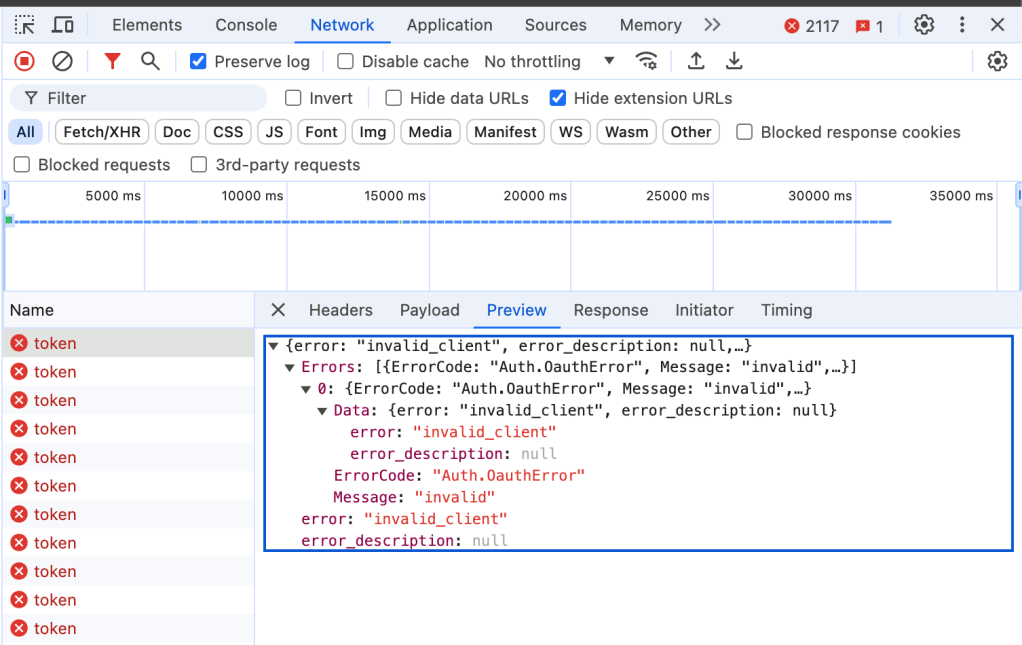
If you face an error like below, you might have missed selecting a default context user in your API Client.

To resolve this, assign a default context user in your API Client. I created a new user under the same Buyer Group and assigned it to the API Client.

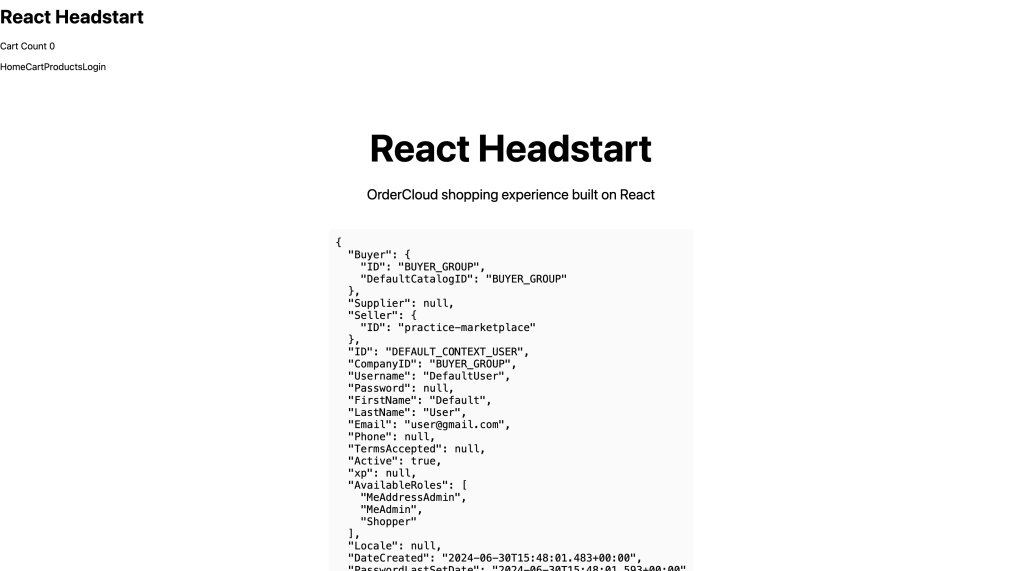
After restarting the app, you should see the following screen:

Congratulations! You have created your first OrderCloud app.

References

I hope you found this guide helpful.

Next.js Scaffolding Script: Simplifying Component Setup and Configuration

What is Scaffolding?

Scaffolding is the process of generating a component based on predefined templates. Typically, when we create a new component, we start from scratch and follow the same repetitive steps each time. This approach can be time-consuming. Scaffolding, on the other hand, provides a basic template with essential code, saving you the effort of rewriting the same code repeatedly.

How Can We Achieve Scaffolding?

Sitecore JSS provides an out-of-the-box (OOTB) Component Scaffolding feature, but it has some limitations. By leveraging the code provided by Sitecore, we can enhance the scaffolding to include additional files, such as Storybook and mock-data files, when creating a scaffolded component. With some configurations, we can also generate various other files.

To create a new component using scaffolding, use the following command:

jss scaffold ComponentName

or

npm run scaffold ComponentName

Scaffolding Script

You can find the scaffolding script in your Next.js src directory:

/src/[project_name]/scripts/scaffold-component/index.ts

Inside the index.ts file, the first step is to define the component name format. You can modify the regular expression based on your requirements:

const nameParamFormat = new RegExp(/^((?:[\\\\w\\\\-]+\\\\/)*)([A-Z][\\\\w-]+)$/);

This means component names should start with a capital letter and contain only letters, numbers, underscores, or dashes.

const componentArg = process.argv[2];
const args = process.argv.slice(3);
// These lines will process the arguments provided in the CLI command.

Next, specify the default configuration, including the component template, component path, and component name.

const defaultConfig: ScaffoldComponentPluginConfig = {
componentPath: regExResult[1],
componentName: regExResult[2],
componentTemplateGenerator: generateComponentSrc,
args: args,
nextSteps: [],
};

generateComponentSrc is the template name imported from another file.

import generateComponentSrc from 'scripts/templates/component-src';

This is the location of the component template (you can create this file in another location if needed). Finally, you’ll find the implementation of the component execution config.

const config = (Object.values(plugins) as ScaffoldComponentPlugin[])
.sort((p1, p2) => p1.order - p2.order)
.reduce((config, plugin) => plugin.exec(config), defaultConfig);

Component Script

Inside the /src/[project_name]/scripts/scaffold-component/plugins directory, you’ll find the component.ts file, which includes the component configuration.

import path from 'path';
import { scaffoldFile } from '@sitecore-jss/sitecore-jss-dev-tools';
import { ScaffoldComponentPlugin, ScaffoldComponentPluginConfig } from '..';
class ComponentPlugin implements ScaffoldComponentPlugin {
  order = 99;
 exec(config: ScaffoldComponentPluginConfig) {
    const { componentName, componentPath } = config;
    const filename = `${componentName}.tsx`;
    const componentRoot = componentPath.startsWith('src/') ? '' : 'src/components/' + componentName;
    const outputFilePath = path.join(componentRoot, componentPath, filename);
    const template = config.componentTemplateGenerator(componentName);
    const componentOutputPath = scaffoldFile(outputFilePath, template);
    return {
      ...config,
      componentOutputPath,
    };
  }
}
export const componentPlugin = new ComponentPlugin();

This script retrieves the component name and path from the config file, determines the output directory, and uses the scaffoldFile function provided by Sitecore JSS to generate the component based on the template.

Component Template File

Inside the src/[project_name]/scripts/templates directory, you’ll find the component-src.ts file where you can define your component snippet. You can also use the OOTB file. Here’s an example that also includes a Tailwind variant snippet:

function generateComponentSrc(componentName: string): string {
const component = componentName.charAt(0).toLowerCase() + componentName.slice(1);
return `import React from 'react';
import { withDatasourceCheck } from '@sitecore-jss/sitecore-jss-nextjs';
import { tv } from 'tailwind-variants';
import { ComponentProps } from 'lib/component-props';

export type ${componentName}Props = ComponentProps & {
fields: unknown;
};

const ${component}Variants = tv({
slots: {
base: ['${component}'],
},
compoundSlots: [{ slots: [], class: [] }],
variants: {
size: {
mobile: {},
desktop: {},
},
},
}, { responsiveVariants: ['lg'] });
const ${componentName}: React.FC<${componentName}Props> = ({ fields, params }) => {
const { base } = ${component}Variants({ size: { initial: 'mobile', lg: 'desktop' } });
if (!fields) return <></>;
return (
<div className={base({ className: params?.Style ?? '' })}>
${componentName}
</div>
);
};
export default withDatasourceCheck()<${componentName}Props>(${componentName});
`;
}
export default generateComponentSrc;

Adding Storybook and Mock-Data Files

If your project requires story book then here the example which describe how to scaffold these files also using the scaffold command.

To add Storybook and mock-data files, first create two new templates in the src/[project_name]/scripts/templates directory:

  1. story-src.ts
  2. mock-src.ts

story-src.ts

function generateStorySrc(componentName: string): string {
return `import type { Meta, StoryObj } from '@storybook/react';
import ${componentName}, { ${componentName}Props } from '../../../components/${componentName}/${componentName}';
import defaultData from './${componentName}.mock-data';
const meta: Meta<typeof ${componentName}> = {
title: 'Components/${componentName}',
component: ${componentName},
tags: ['autodocs'],
argTypes: {},
};
export default meta;
type Story = StoryObj<typeof ${componentName}>;
export const Default: Story = {
render: (args) => {
return <${componentName} {...args} />;
},
args: defaultData,
};
`;
}
export default generateStorySrc;

mock-src.ts

function generateMockSrc(componentName: string): string {
return `import { ${componentName}Props } from 'components/${componentName}/${componentName}';const defaultData: ${componentName}Props = {
rendering: {
componentName: '${componentName}',
dataSource: '{00000000-0000-0000-0000-000000000000}',
},
params: {},
fields: {},
};
export default defaultData;
`;
}
export default generateMockSrc;

Next, create two files similar to component.ts inside the plugins folder, configuring these files with the template path and output directory path. For an example, mock.ts:

import path from 'path';
import { scaffoldFile } from '@sitecore-jss/sitecore-jss-dev-tools';
import { ScaffoldComponentPlugin, ScaffoldComponentPluginConfig } from '..';
import generateMockSrc from 'scripts/templates/mock-src';
class MockPlugin implements ScaffoldComponentPlugin {
order = 80;
exec(config: ScaffoldComponentPluginConfig) {
const { componentName, componentPath } = config;
const filename = `${componentName}.mock-data.ts`;
const componentRoot = componentPath.startsWith('src/')
? ''
: 'src/stories/components/' + componentName;
const outputFilePath = path.join(componentRoot, componentPath, filename);
const componentOutputPath = scaffoldFile(outputFilePath, generateMockSrc(componentName));
return {
...config,
componentOutputPath,
};
}
}
export const mockPlugin = new MockPlugin();
Create a similar file for Storybook, changing the output destination and template imports.

Finally, register your new .ts files in your index.ts file:

const storyConfig: ScaffoldComponentPluginConfig = {
componentPath: regExResult[1],
componentName: regExResult[2],
componentTemplateGenerator: generateStorySrc,
args: args,
nextSteps: [],
};

storyConfig.nextSteps.push(
chalk.green(`
Scaffolding of ${storyConfig.componentName} complete.
Next steps:`)
);

const mockConfig: ScaffoldComponentPluginConfig = {
componentPath: regExResult[1],
componentName: regExResult[2],
componentTemplateGenerator: generateMockSrc,
args: args,
nextSteps: [],
};

mockConfig.nextSteps.push(
chalk.green(`
Scaffolding of ${mockConfig.componentName} complete.
Next steps:`)
);

Add the above configuration inside the index.ts file. The nextSteps property provides feedback to confirm successful file creation.

Congratulations! You’ve now created your own scaffolding files and can customize them further to suit your needs.