When building search-driven experiences in Sitecore Search (XM Cloud), it’s common to personalize or adjust results based on business logic. That’s where widget rules come into play.
In this post, we’ll cover:
- What rules are in Sitecore Search
- The different types of rules (Boost, Bury, Blacklist)
- How these rules interact when applied in a widget variation
What are Widget Rules?
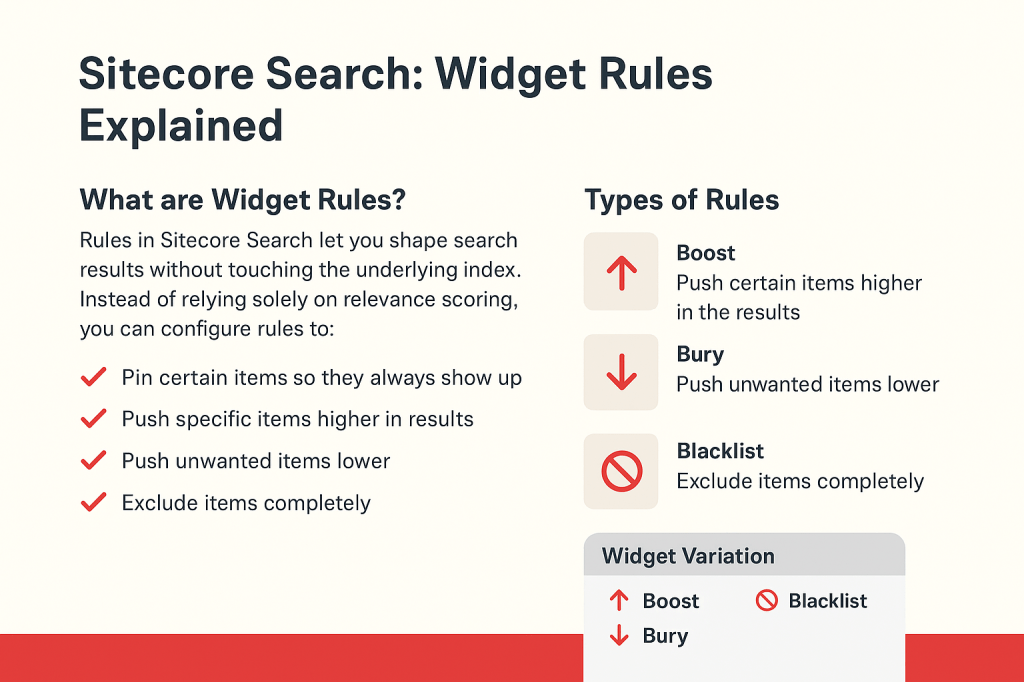
Rules in Sitecore Search let you shape search results without touching the underlying index. Instead of relying solely on relevance scoring, you can configure rules to:
- Pin certain items so they always show up
- Push specific items higher in results
- Push unwanted items lower
- Exclude items completely
These rules can be applied directly to a widget variation, or globally so they’re inherited across multiple variations.
Slots
Slots are fixed positions in your search results where you can pin specific content or products.
- You can drag and drop items into slots from the content collection.
- Once placed, you can still apply rules like Boost, Bury, or Blacklist to fine-tune behavior.
- Slots are especially useful for promoting key campaigns, “hero” products, or editorial content.
Types of Rules
1. Boost Rules
Boosting pushes certain items higher in the results.
- You define attributes (e.g., brand, price, color, category, feature) as conditions.
- Example: Boost all items where
color = "Red". - Multiple attributes act as an OR condition (if any match, the item gets boosted).
Use case: Highlight products from a specific brand during a seasonal campaign.
2. Bury Rules
Burying does the opposite — it pushes items lower in the results.
- Works the same way as boost, by selecting attributes.
- When the variation is active, buried items appear after all other results, ranked only among themselves.
Use case: Push out-of-season products toward the bottom of the results list.
3. Blacklist Rules
Blacklist rules completely exclude items from search results.
- Once an item matches a blacklist condition, it won’t appear at all.
Use case: Hide discontinued products or content flagged as internal only.
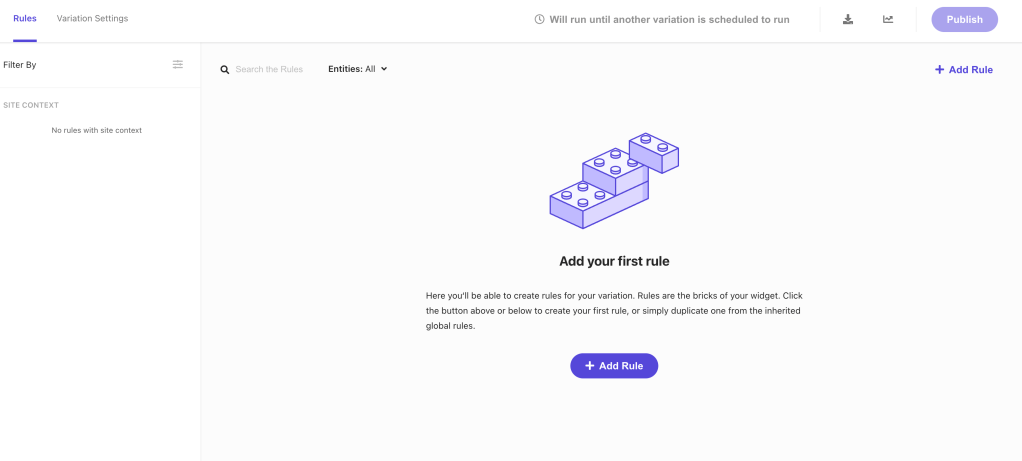


If you set all three types of rules — boost, bury, and blacklist — for a variation in Sitecore’s “Widget Variation → Rules” setup, here’s what happens, based on the “Rule ranking and consolidation” behaviour in Search.
Each widget variation inherits two sets of rules:
- the rules defined in that particular widget variation
- the rules from the active global widget variation
What happens if you have boost + bury + blacklist rules
Given you have three different rules in a variation or combination (including possibly from global variation) — one to boost, one to bury, one to blacklist — here’s how they’d interact:
Blacklist – Items matching this rule are excluded completely; they won’t show up in the results.
Bury – items matching this rule are de-prioritized / pushed down. They still appear, but lower in ranking.
Boost – Items matching this rule are elevated / pushed up in ranking.
So, if you supply all three rules, Sitecore will:
- Exclude items that match the blacklist rule.
- For the rest, among items that survive the blacklist filter: • boost some per the boost rule, • bury some per the bury rule, • the relative effect of boost or bury depends on which rule has the higher (i.e. lower number) rank.

 Ravi Vadher
Leave a comment